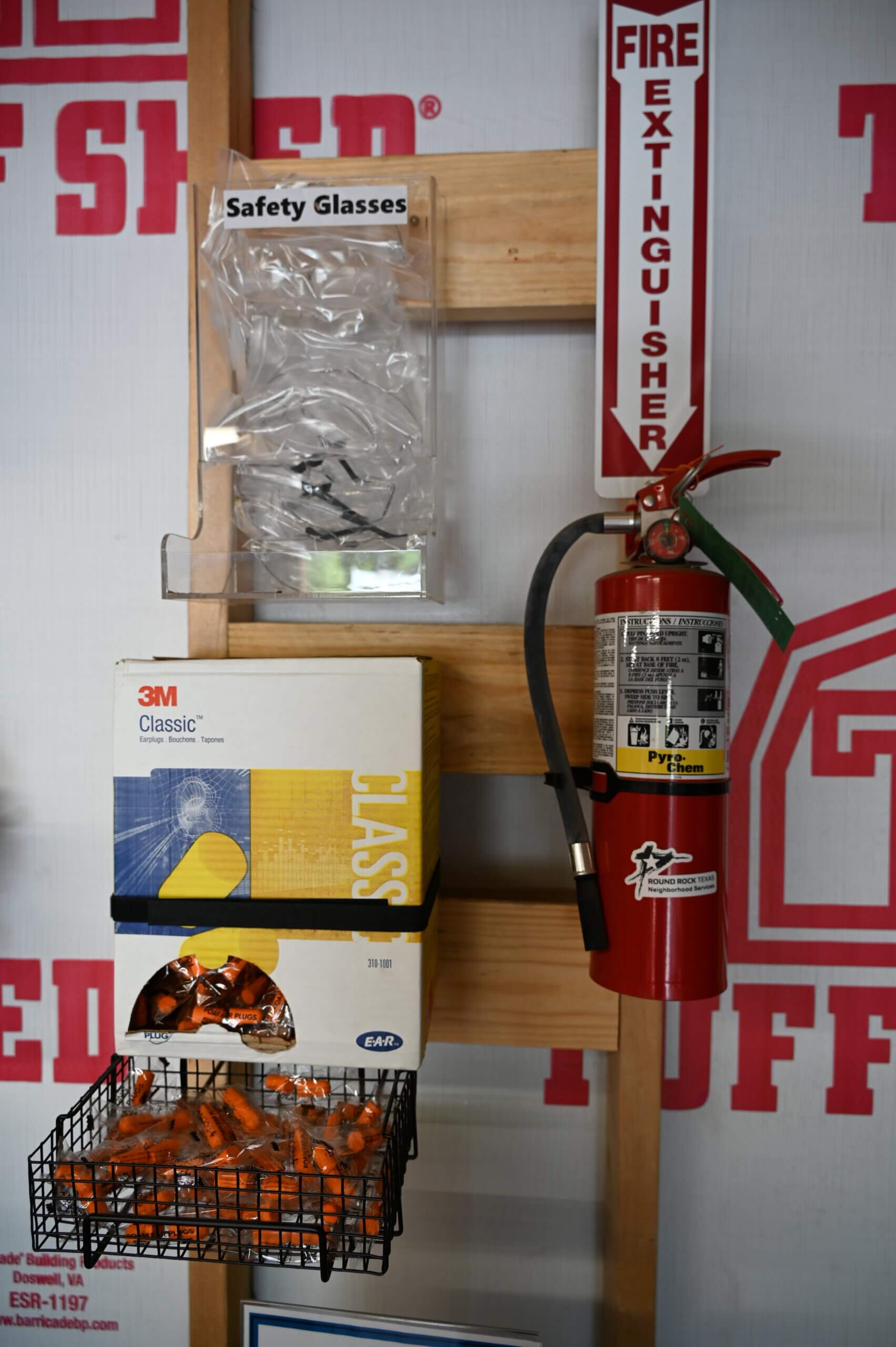
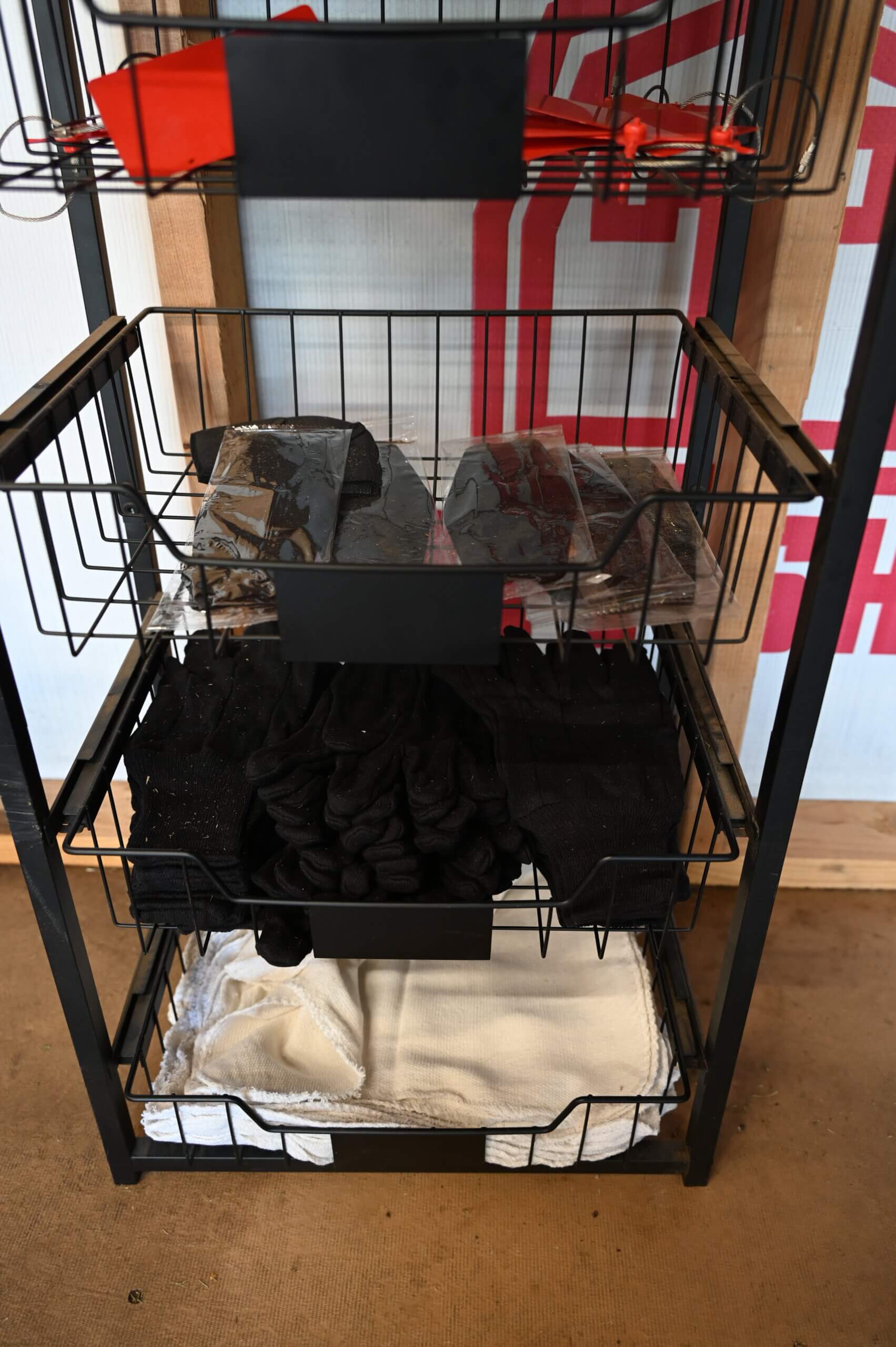
100+
Tools Available
FREE
Gas is Included
24/7
Access to Facility
Borrow tools. At no cost. On your time.
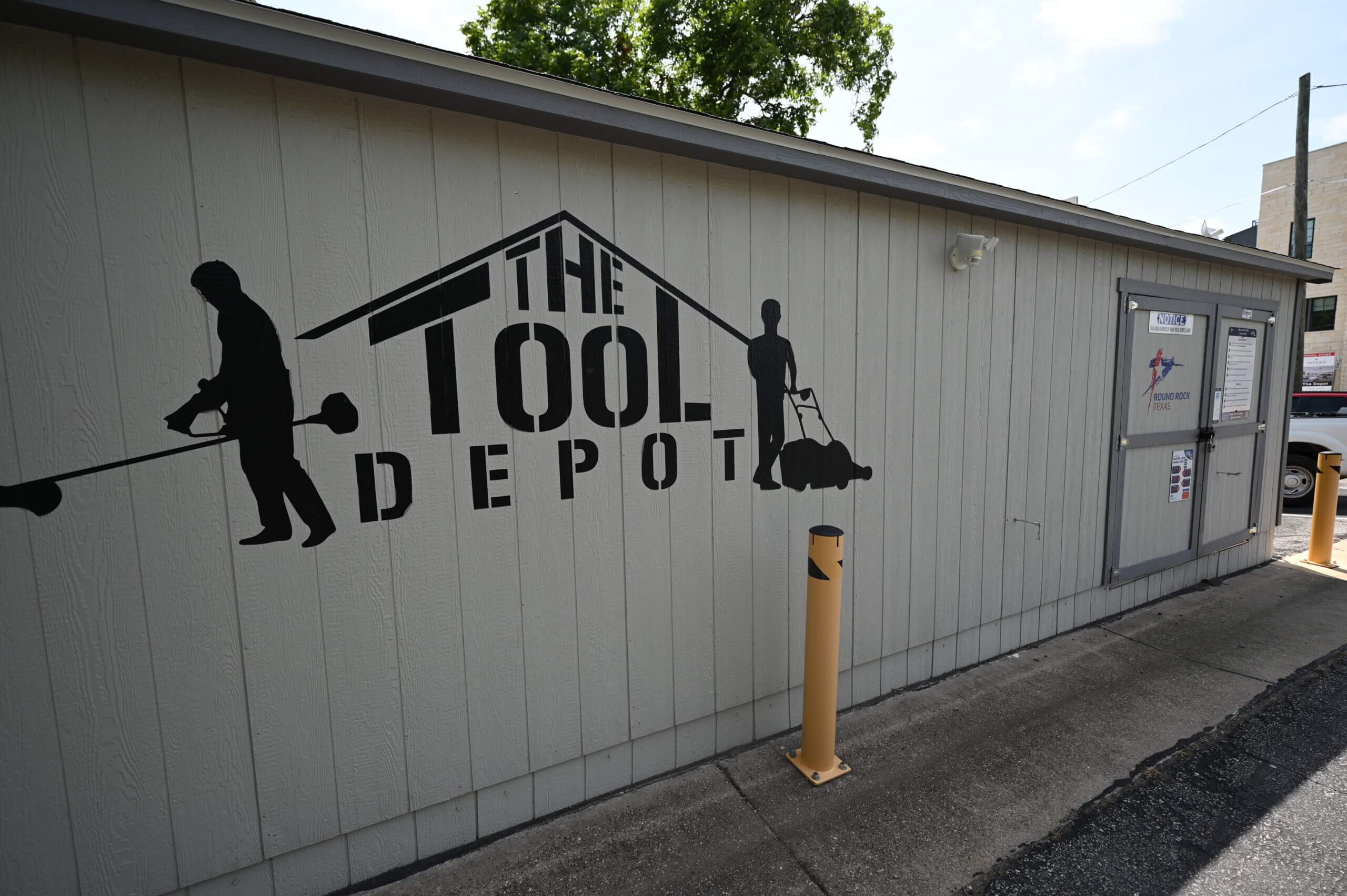
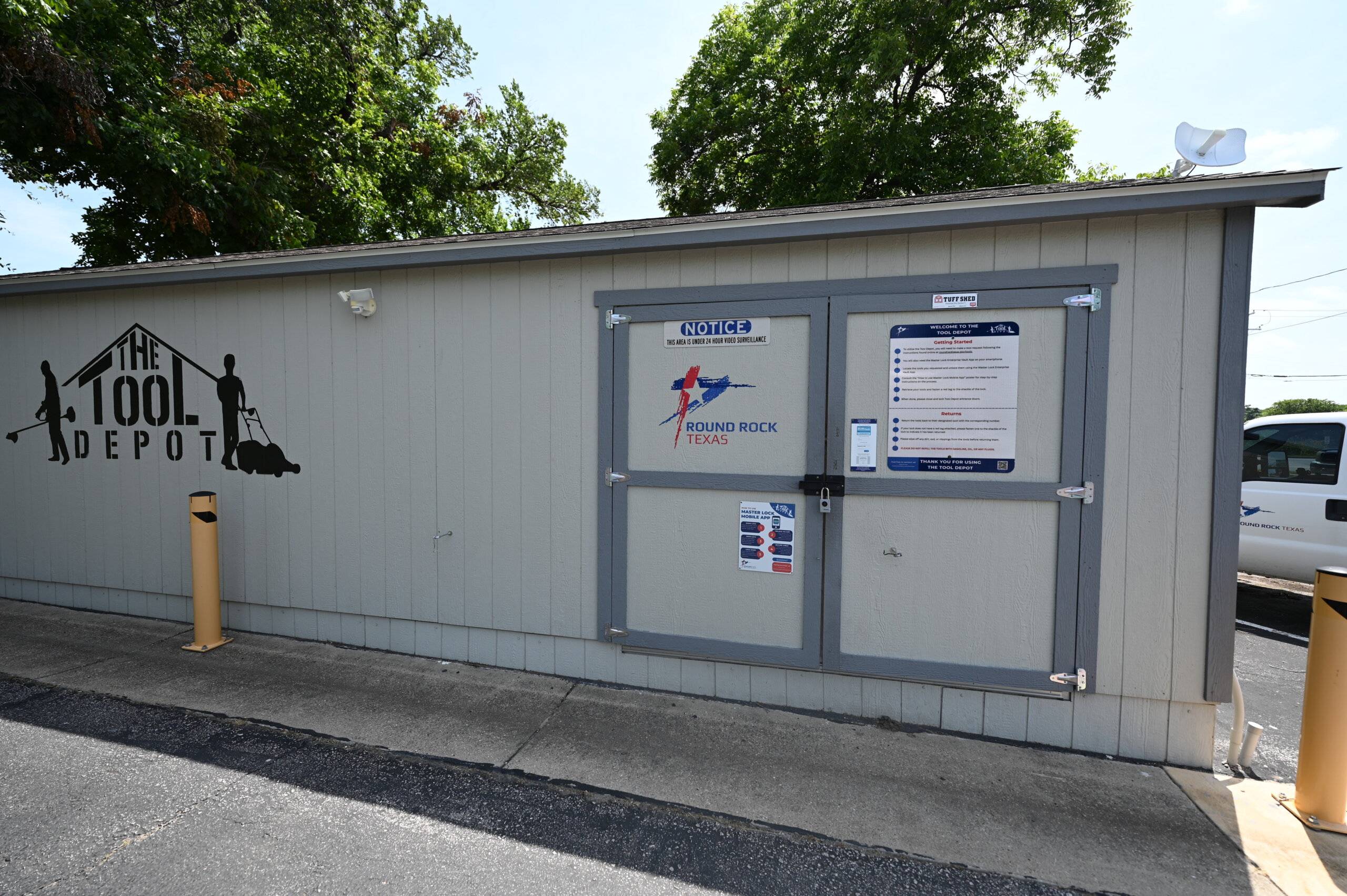
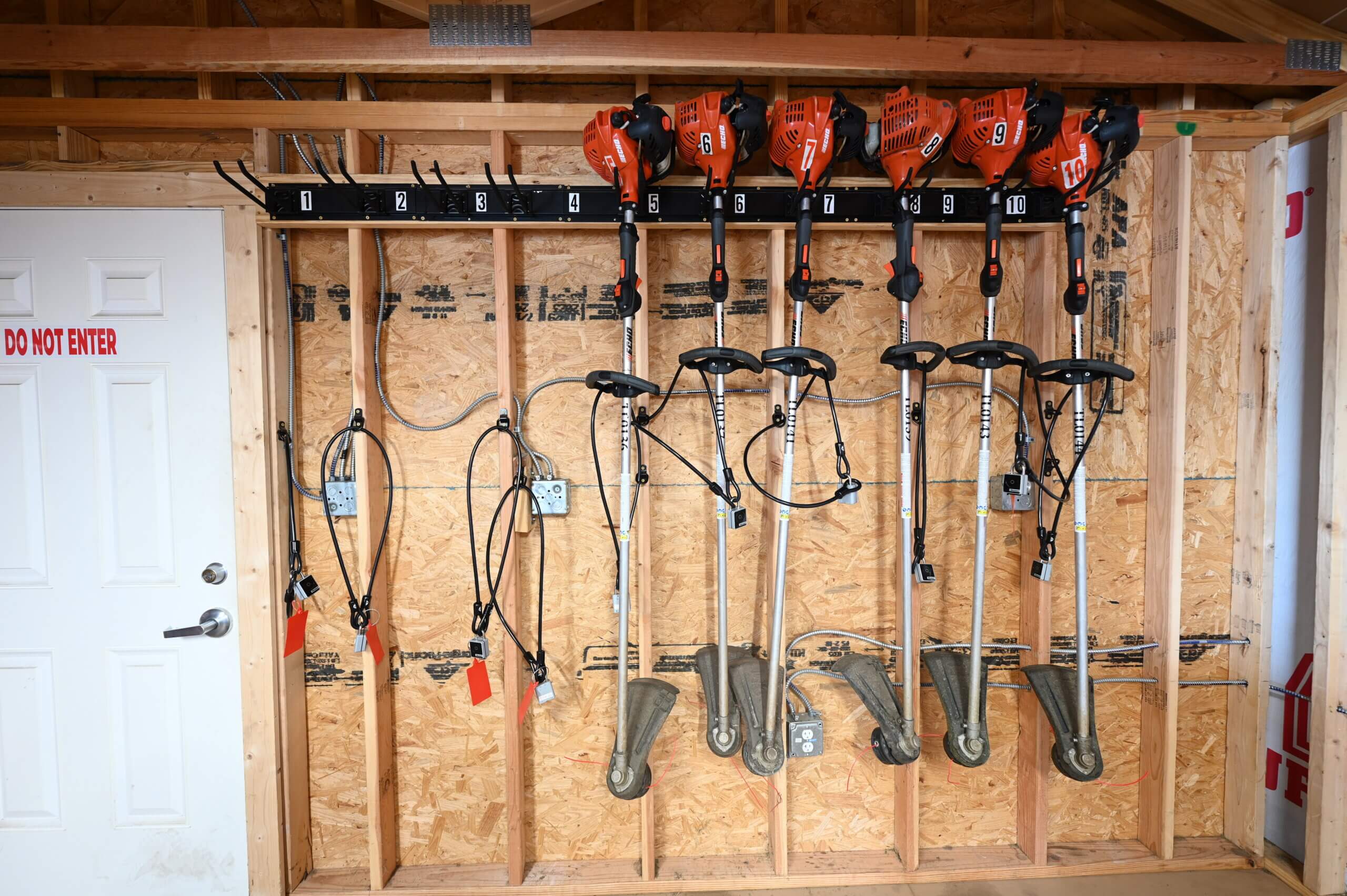
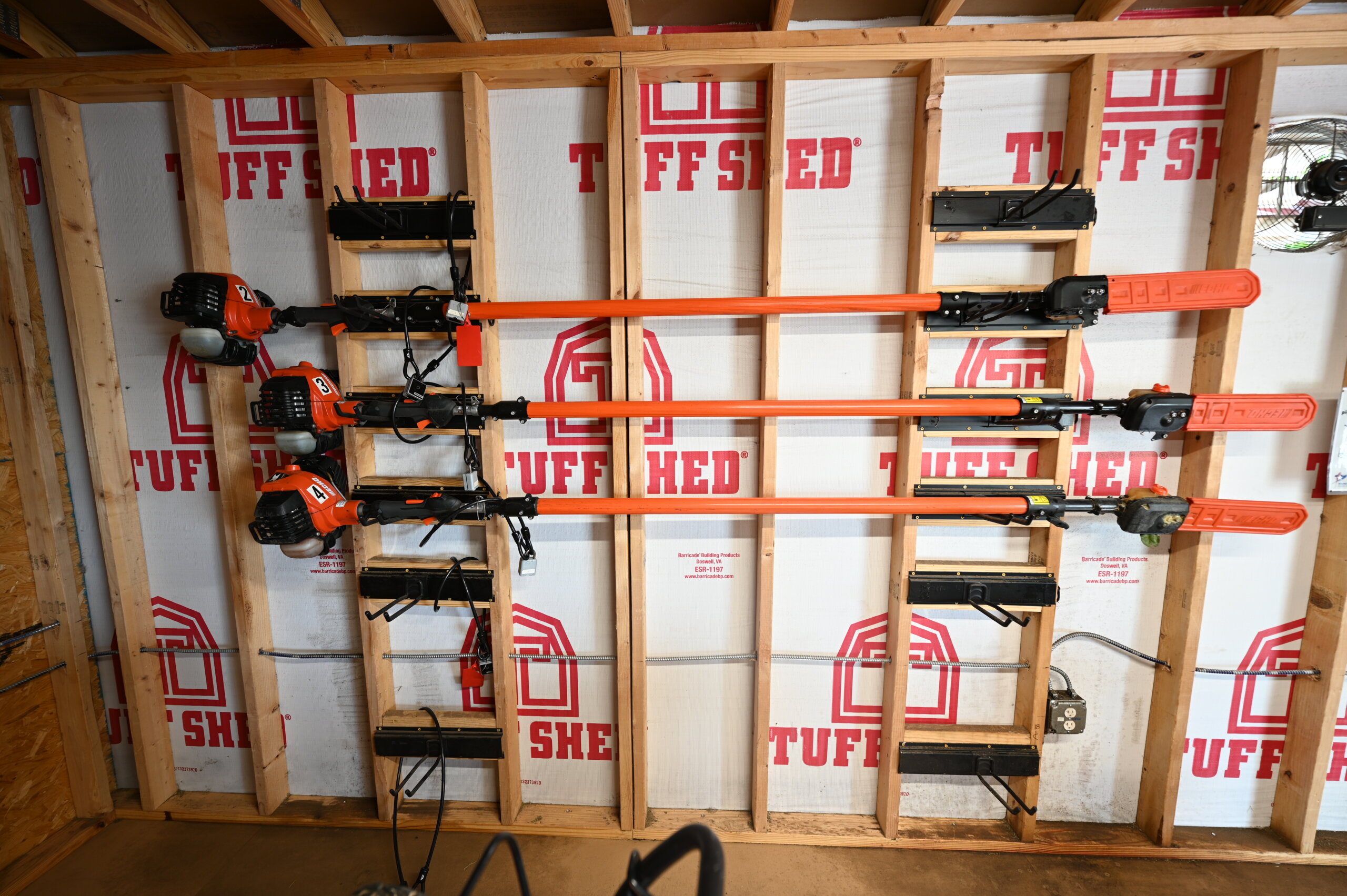
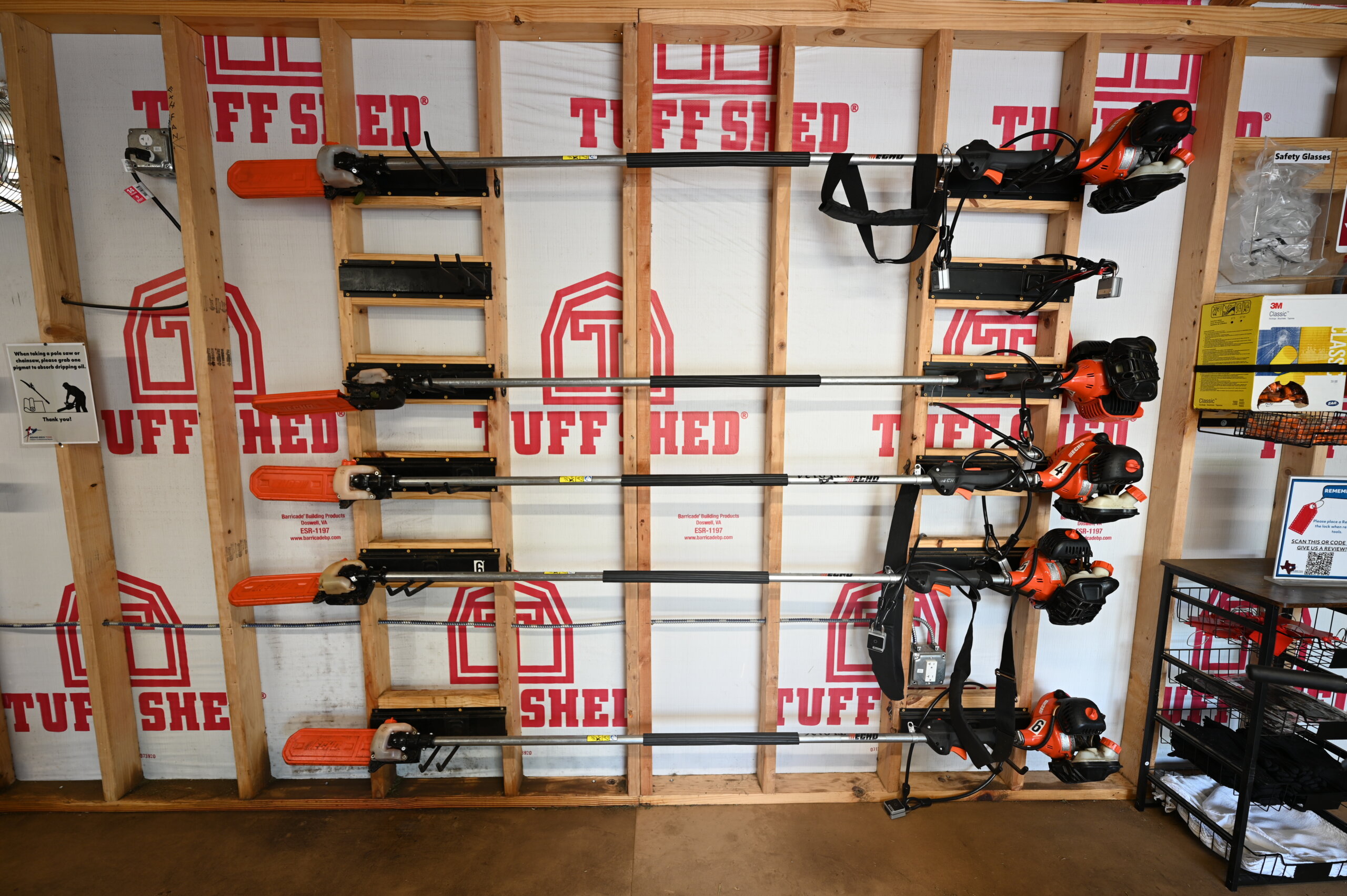
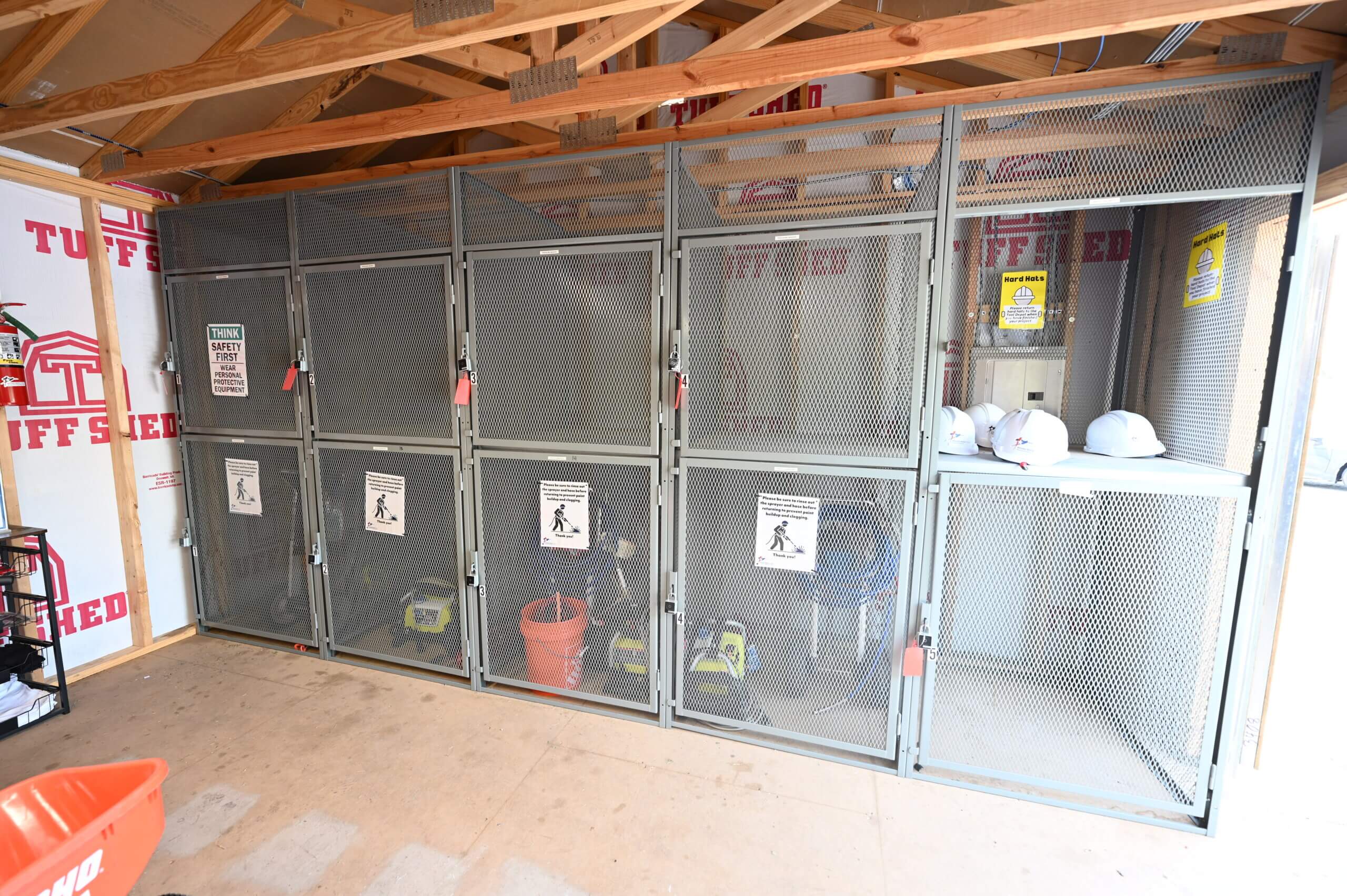
The Tool Depot is a city-run program that allows residents to borrow lawn care and maintenance tools at no-cost. Just place a hold online, wait to get your tool assigned, pick up the tool at our self-serve location using your phone, then return the tools right back where you got them.
First Time?
This is a public program from the City of Round Rock for Round Rock residents who are 18 or older. Only those living within Round Rock city limits may access it.
Please verify your address using our City of Round Rock (CORR) Address Verification Tool below.
Address Verification – Web App | Only properties in the lightly shaded area are considered to be within city limits.
Creating an Account
If you do not have a Tool Depot account, please follow these steps to create one. The application process usually takes 2-4 business days depending on how quickly you complete each step. You must be 18 or older to be eligible.
Step 1 - Submitting an Account Application
Go to the Tool Depot Catalog to create your account using the link below.
Step 2 - Address Verification
We have to verify that you have a Round Rock address. You will need to provide a copy of your driver’s license with your Round Rock address on it. Click the link below to complete the Driver’s License Upload Form.
This process takes us 1-2 business days. Simply wait until we email you back with the instructions for the next step. Once we’ve verified your address, you won’t be required to verify it again for two years.
Step 3 - MasterLock App Setup
After we confirm your address, you will receive two emails.
- An email from us notifying you of the MasterLock email.
- An email from MasterLock with instructions to set up your MasterLock Vault Enterprise app on your phone.
We will have to verify that your MasterLock account is set up. This may take us an additional 1-2 business days after you’ve finished setting up your MasterLock Vault Enterprise account. You won’t have to do this again once it’s complete.
Step 4 - Start Requesting Tools
Once we’ve verified that your MasterLock account is set up, we will send you a welcome message email with some details on the Tool Depot and your account info. At this point, you may place holds on any tools in our inventory.
Available Tools
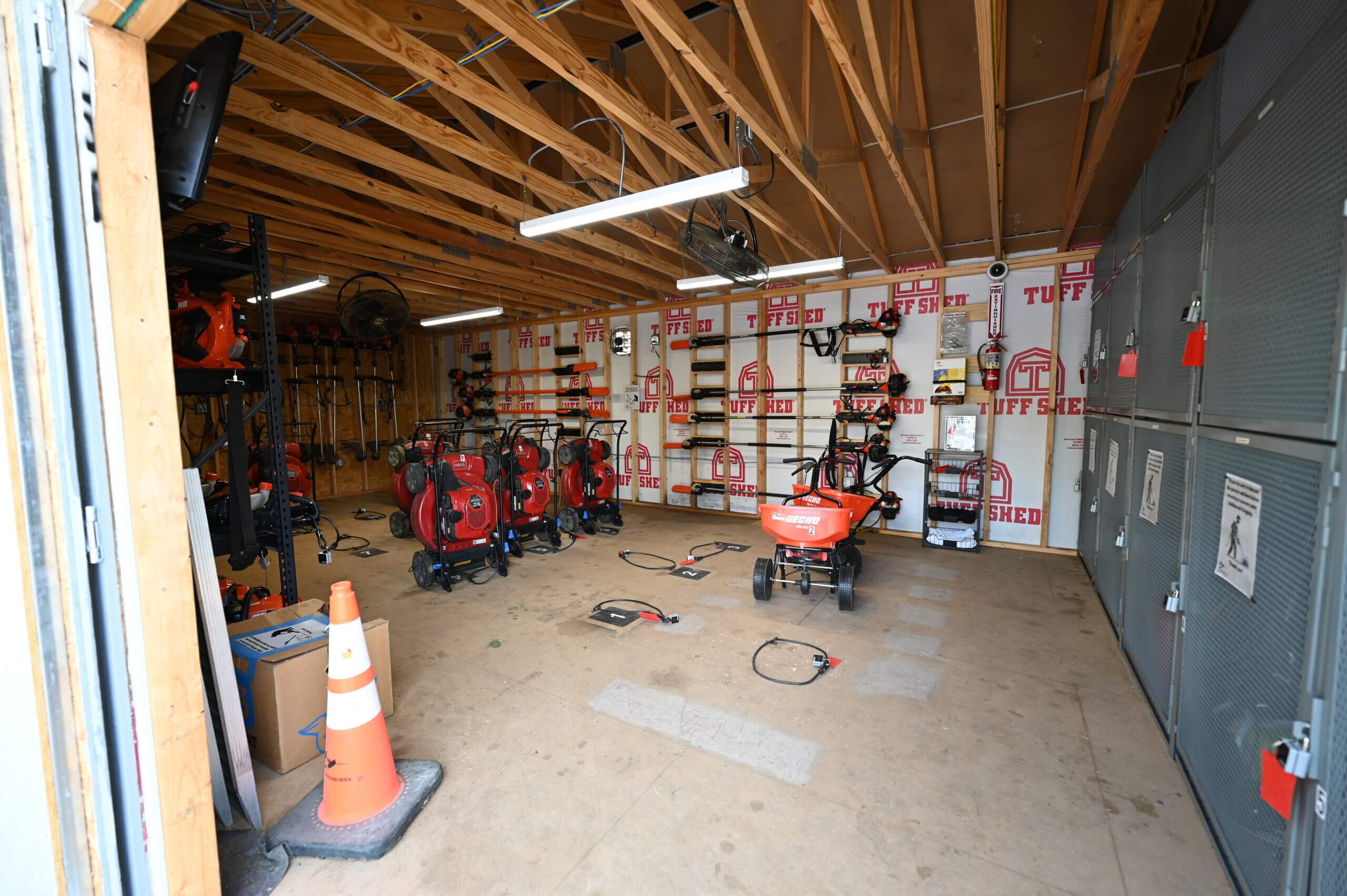
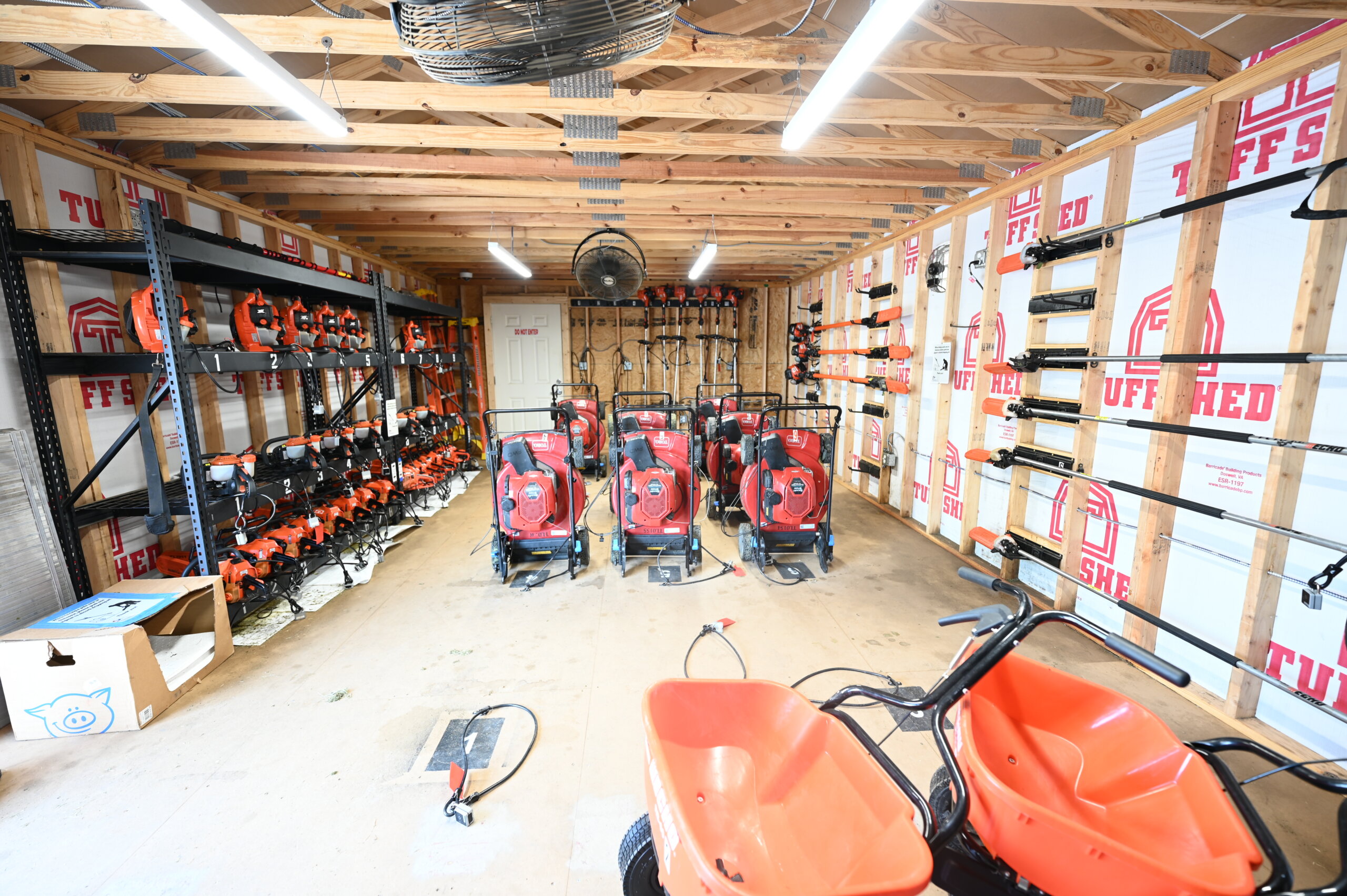
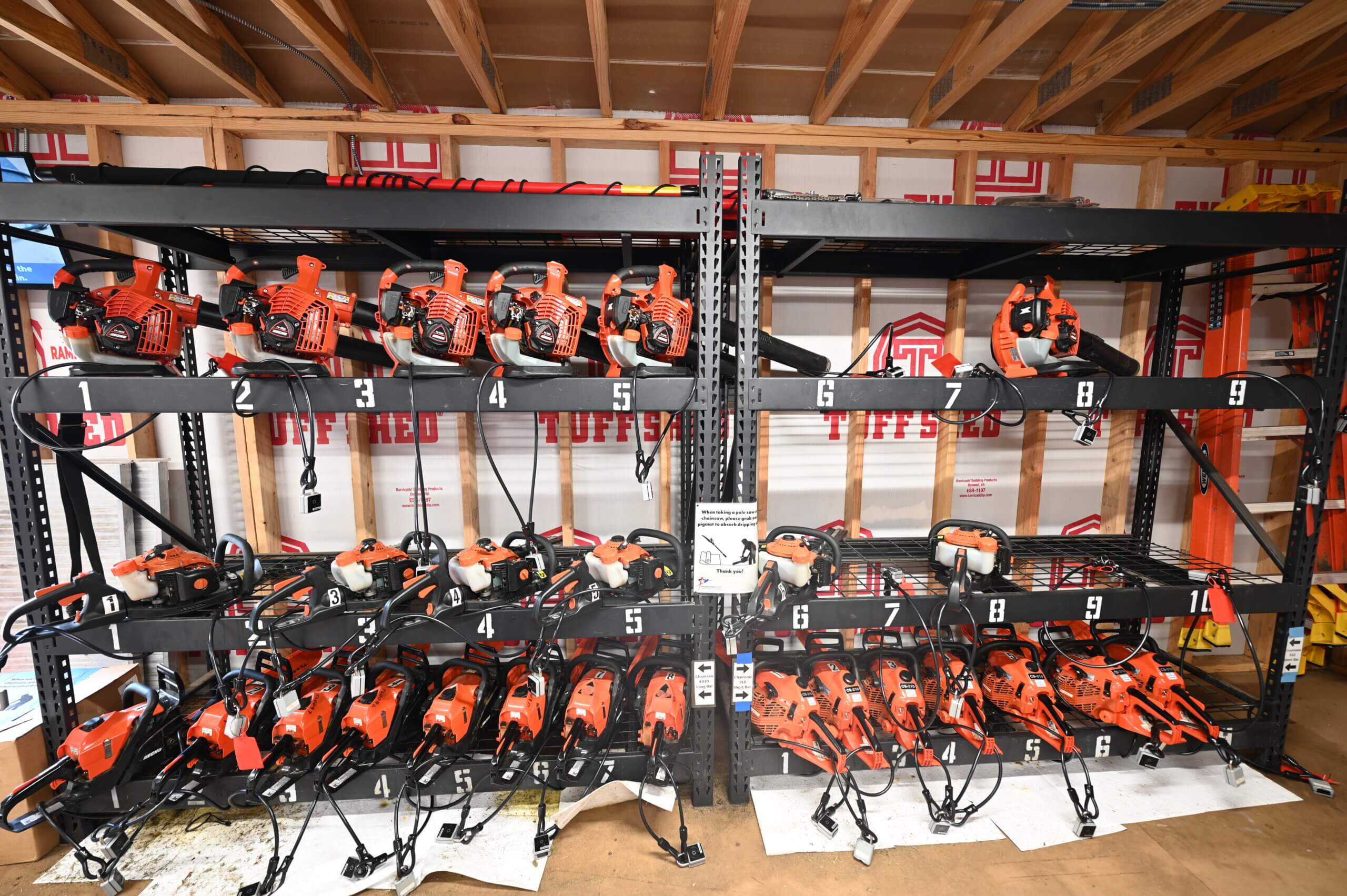
We prioritize tools for lawncare and yard work. For over 100 tools we keep the blades sharp, top off the oil and have them on a preventative maintenance schedule. View all available tools in our tool gallery.
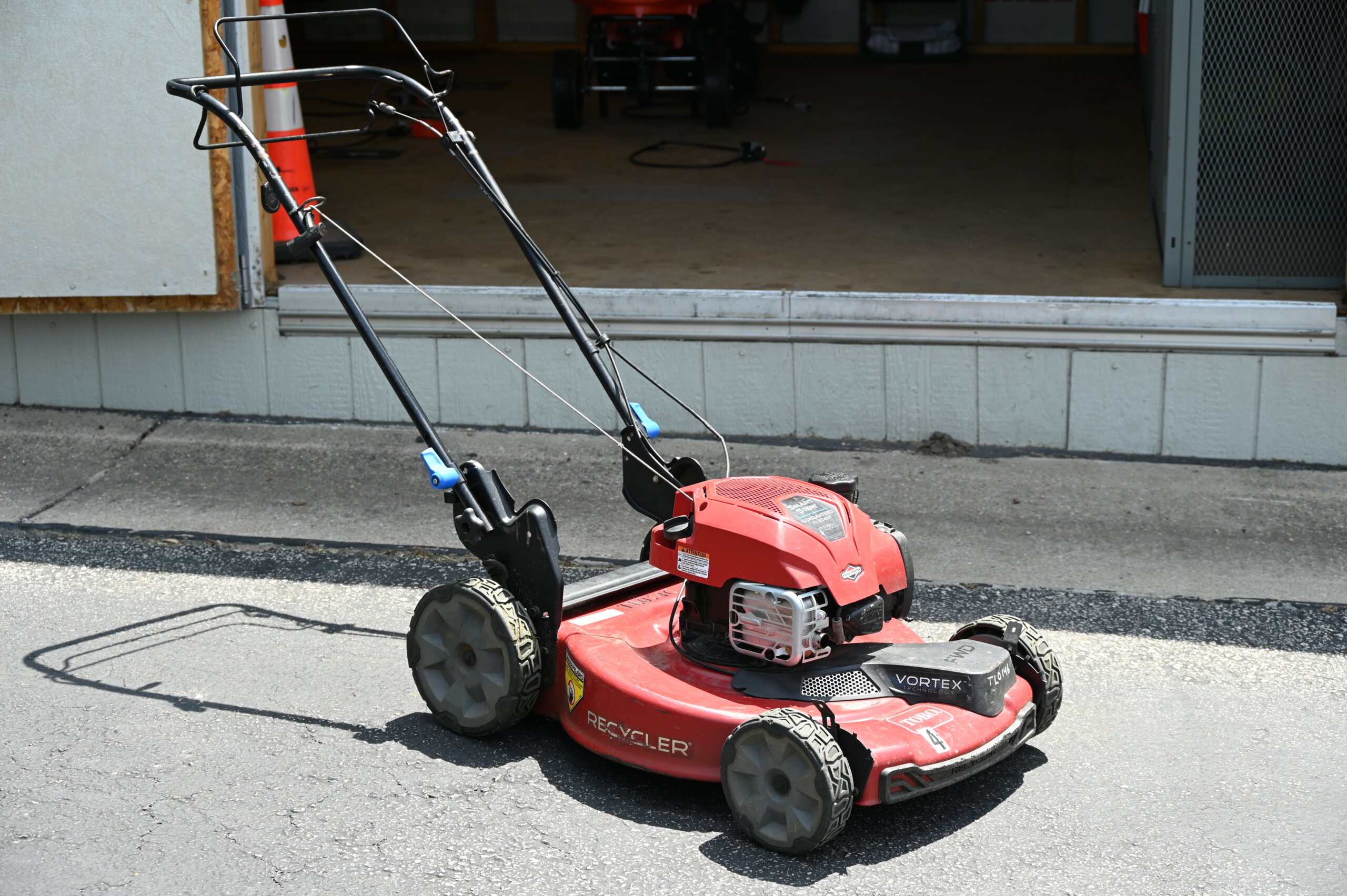
- Lawn mowers
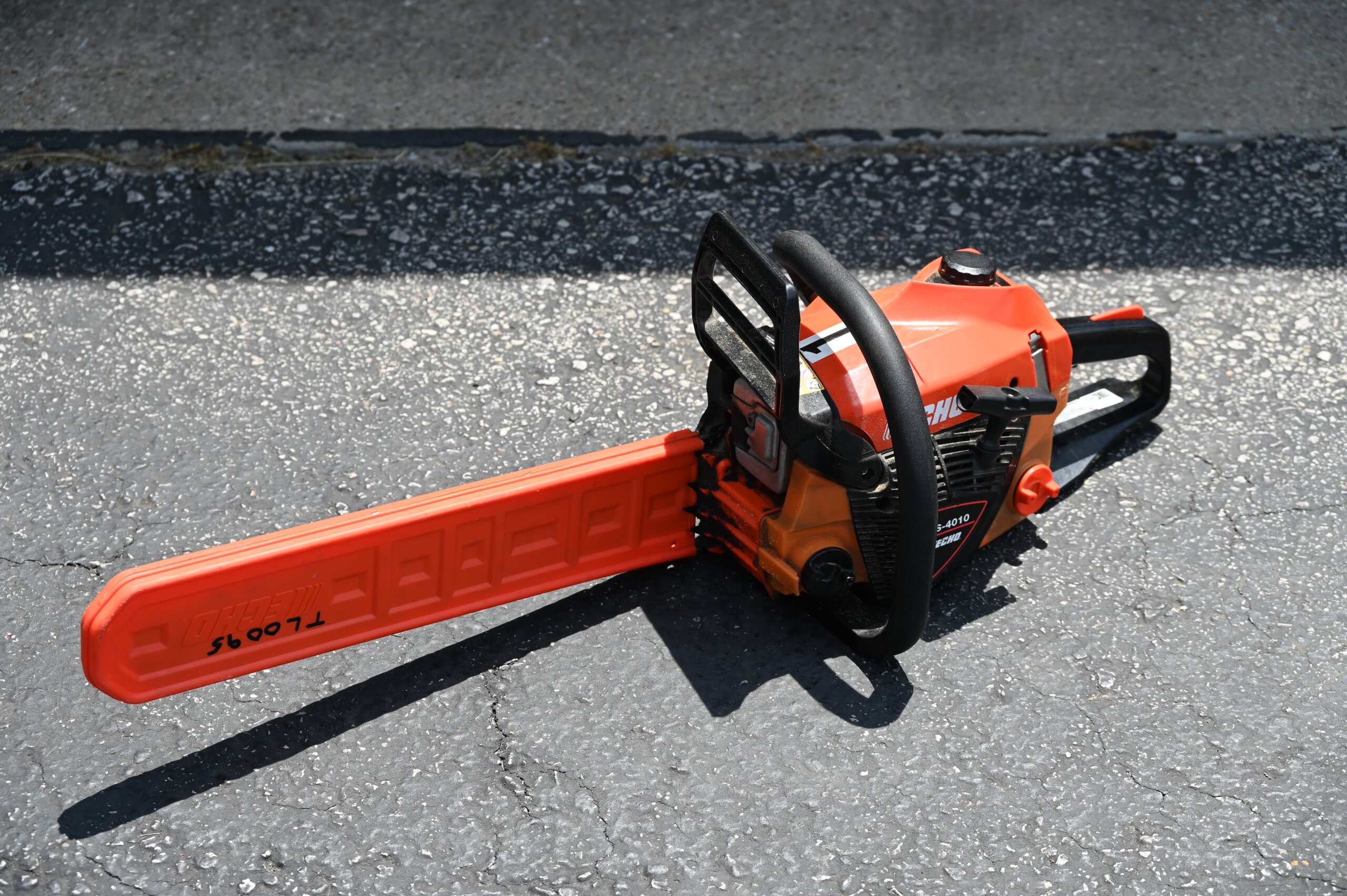
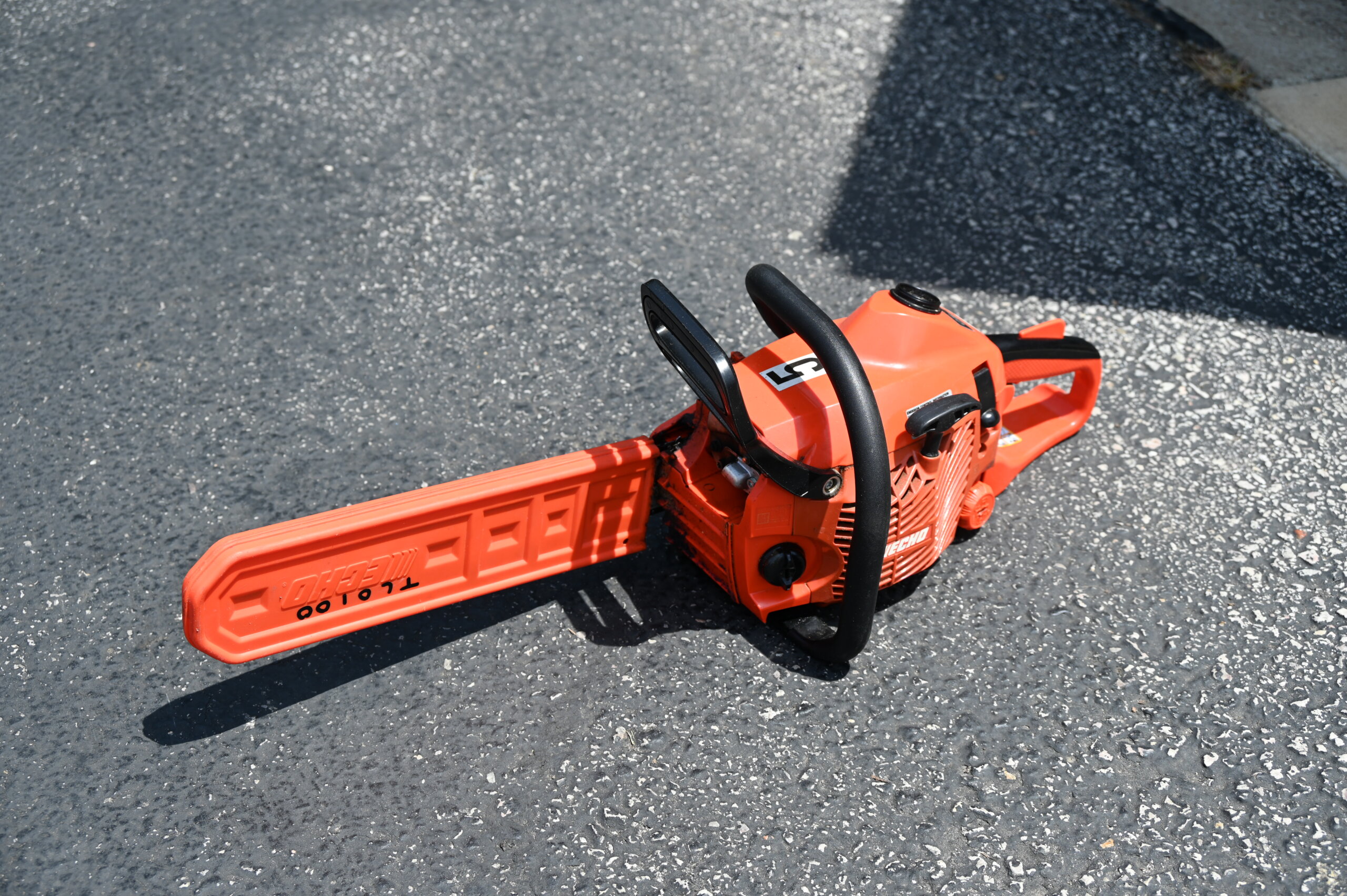
- Chainsaws (short bar and long bar)
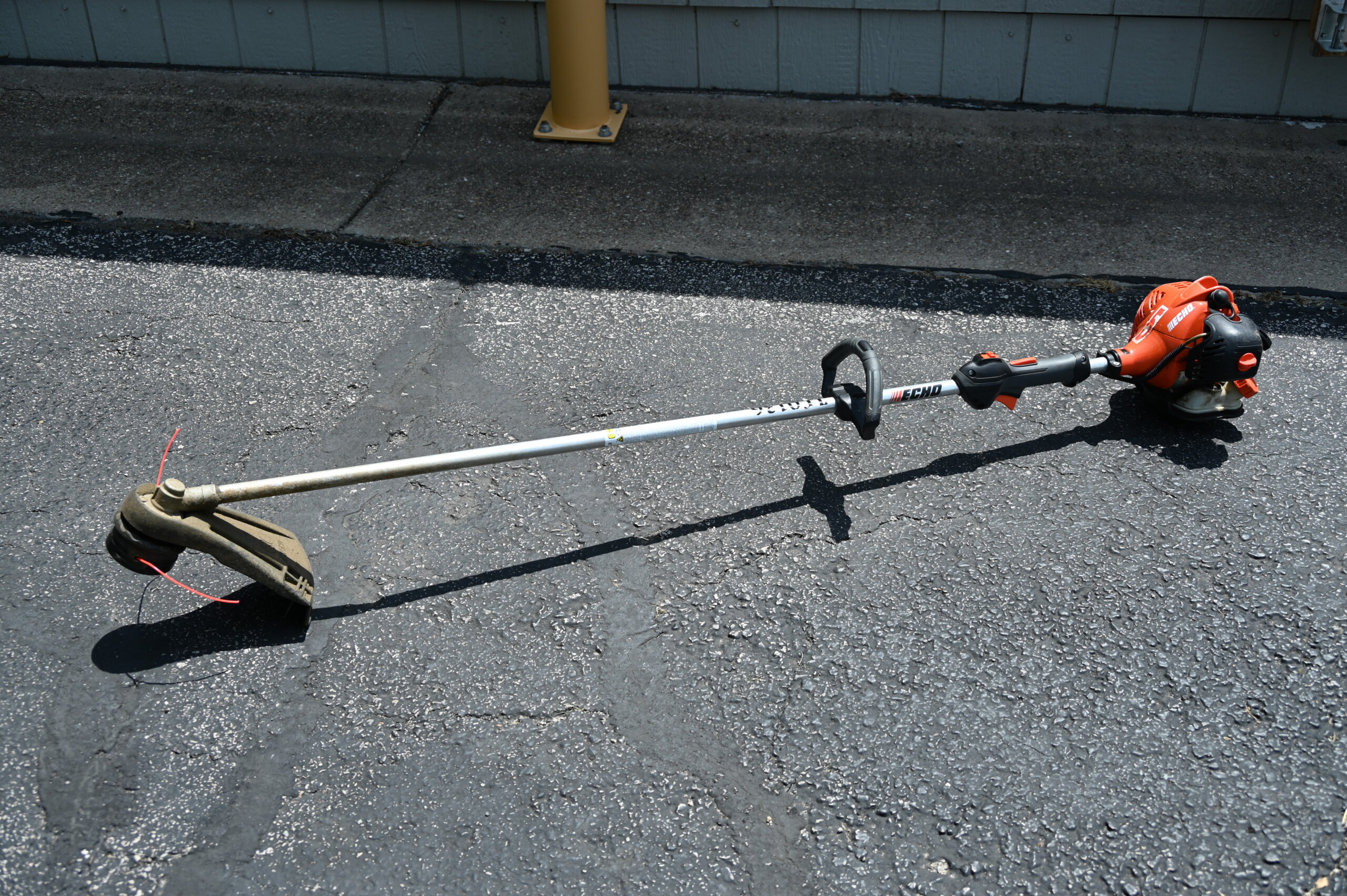
- Weed trimmers
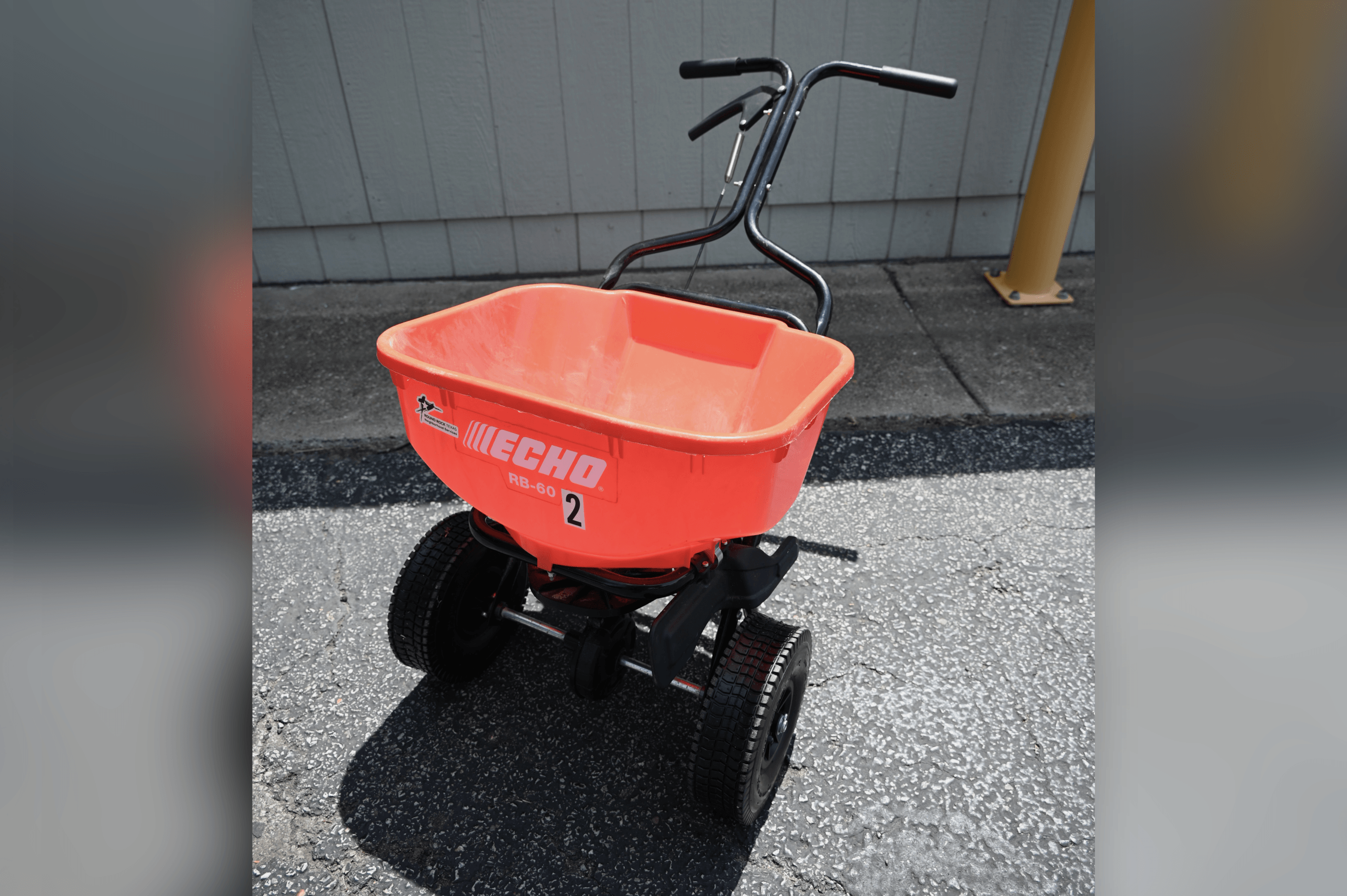
- Seed & feed spreaders
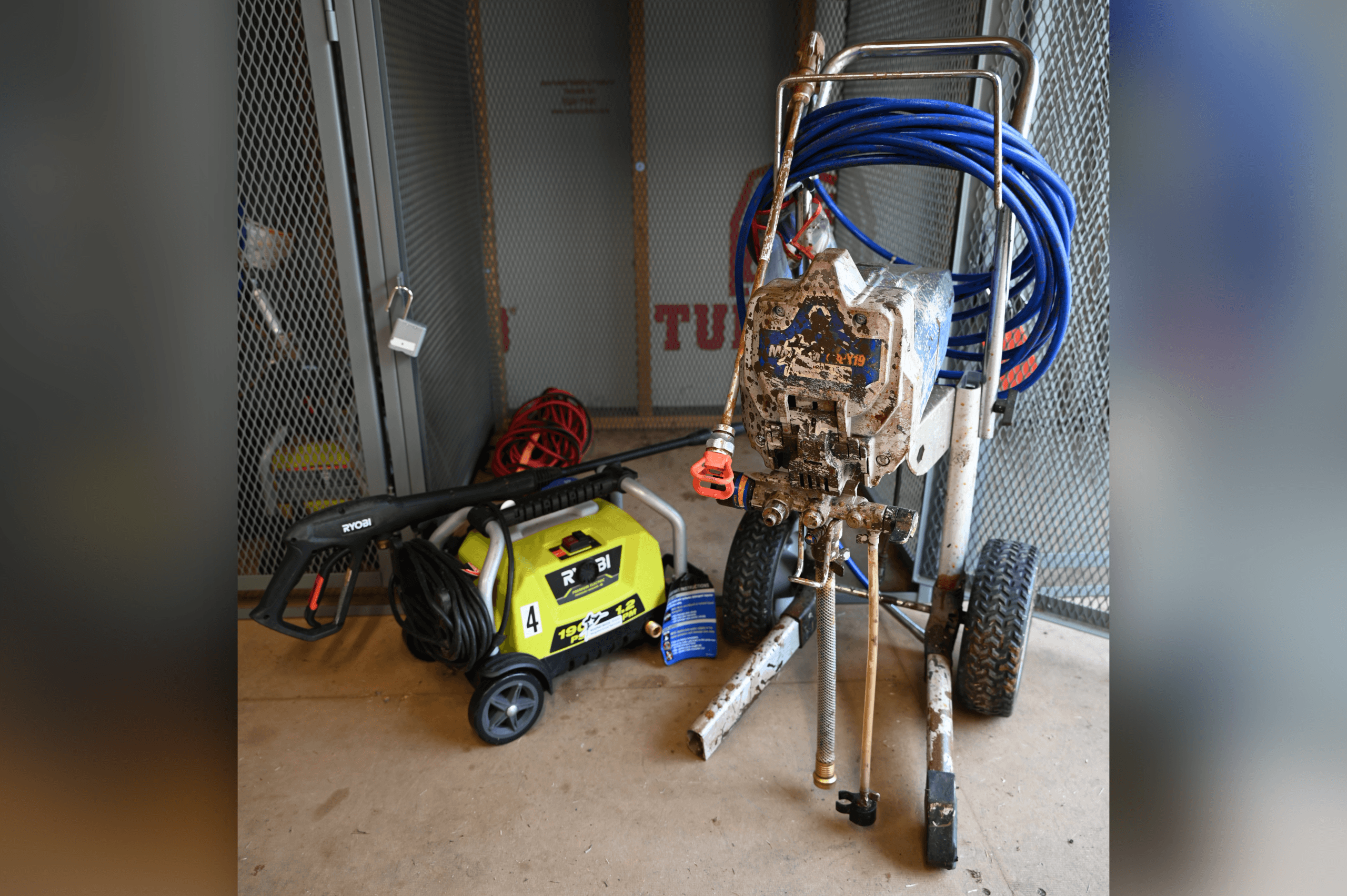
- Pressure washers
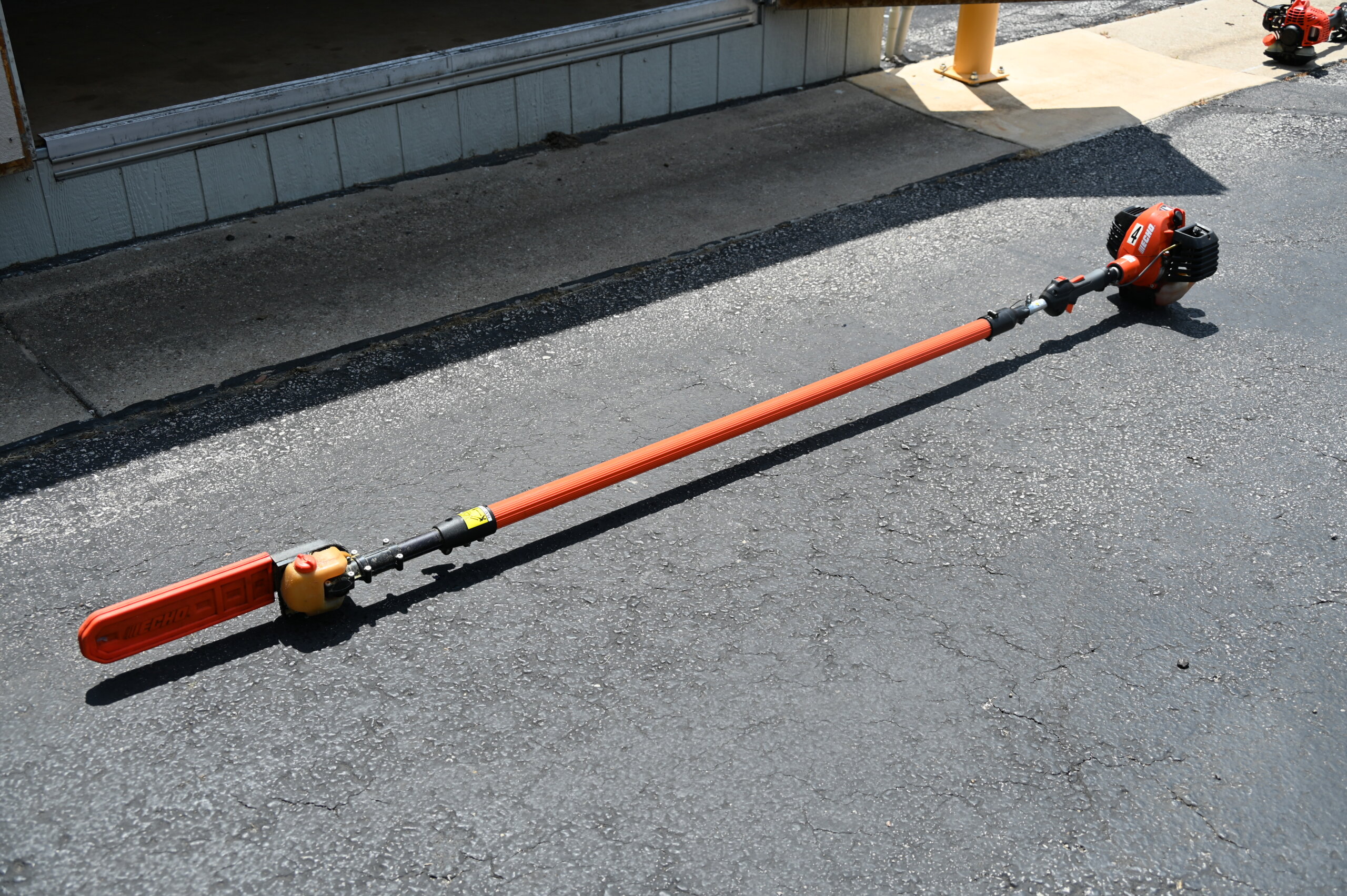
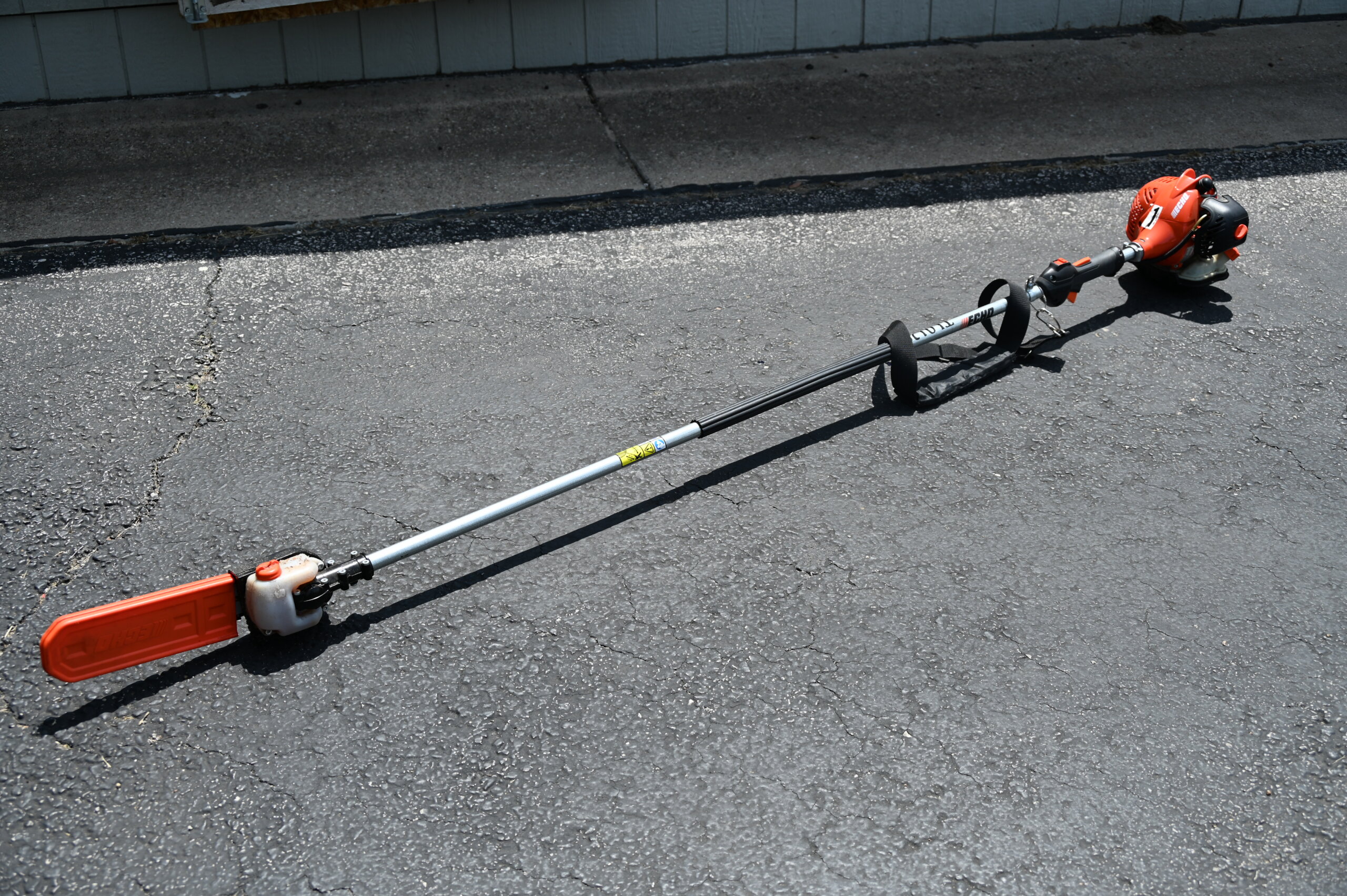
- Pole saws (extending and standard)
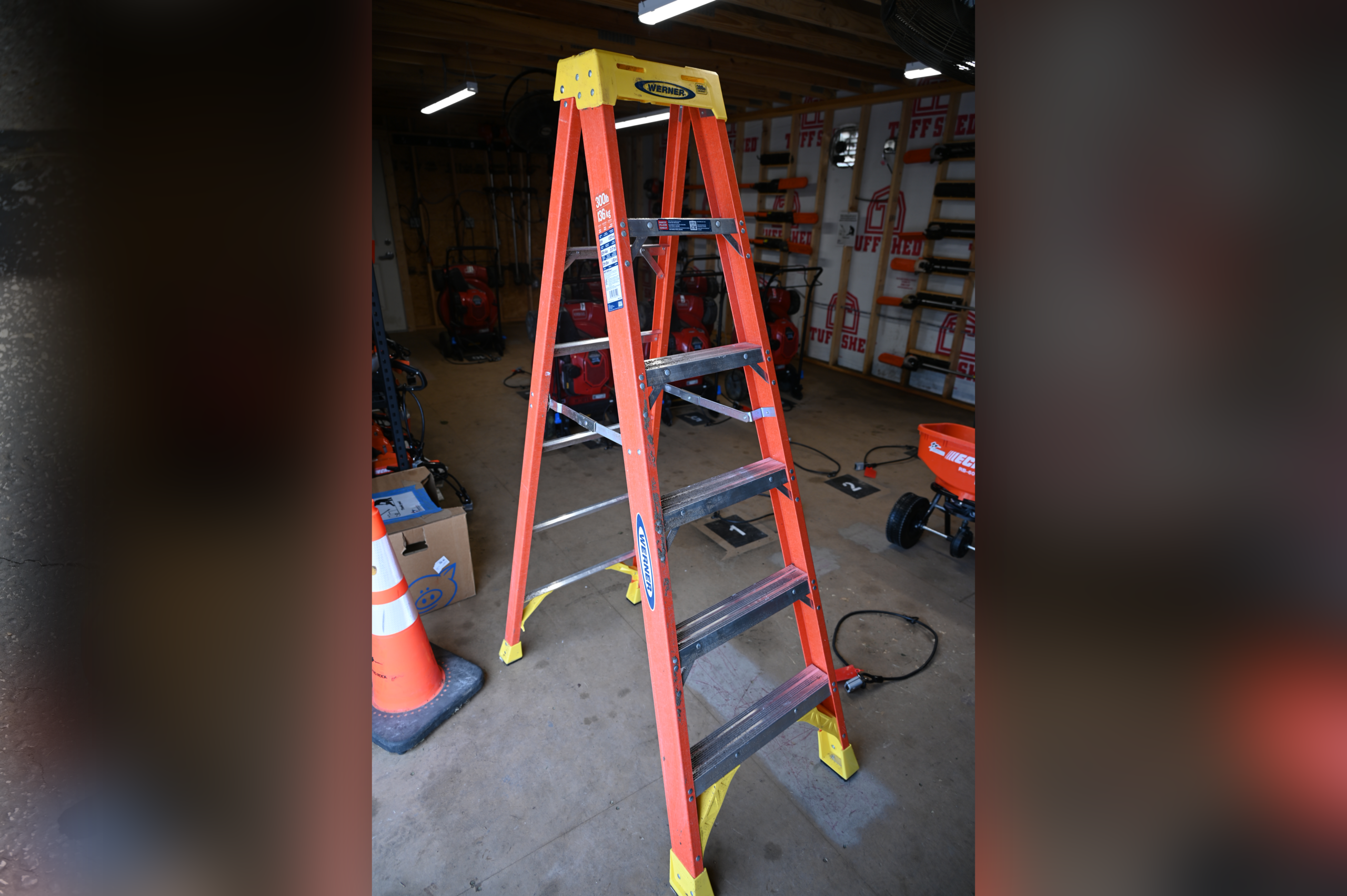
- Ladders
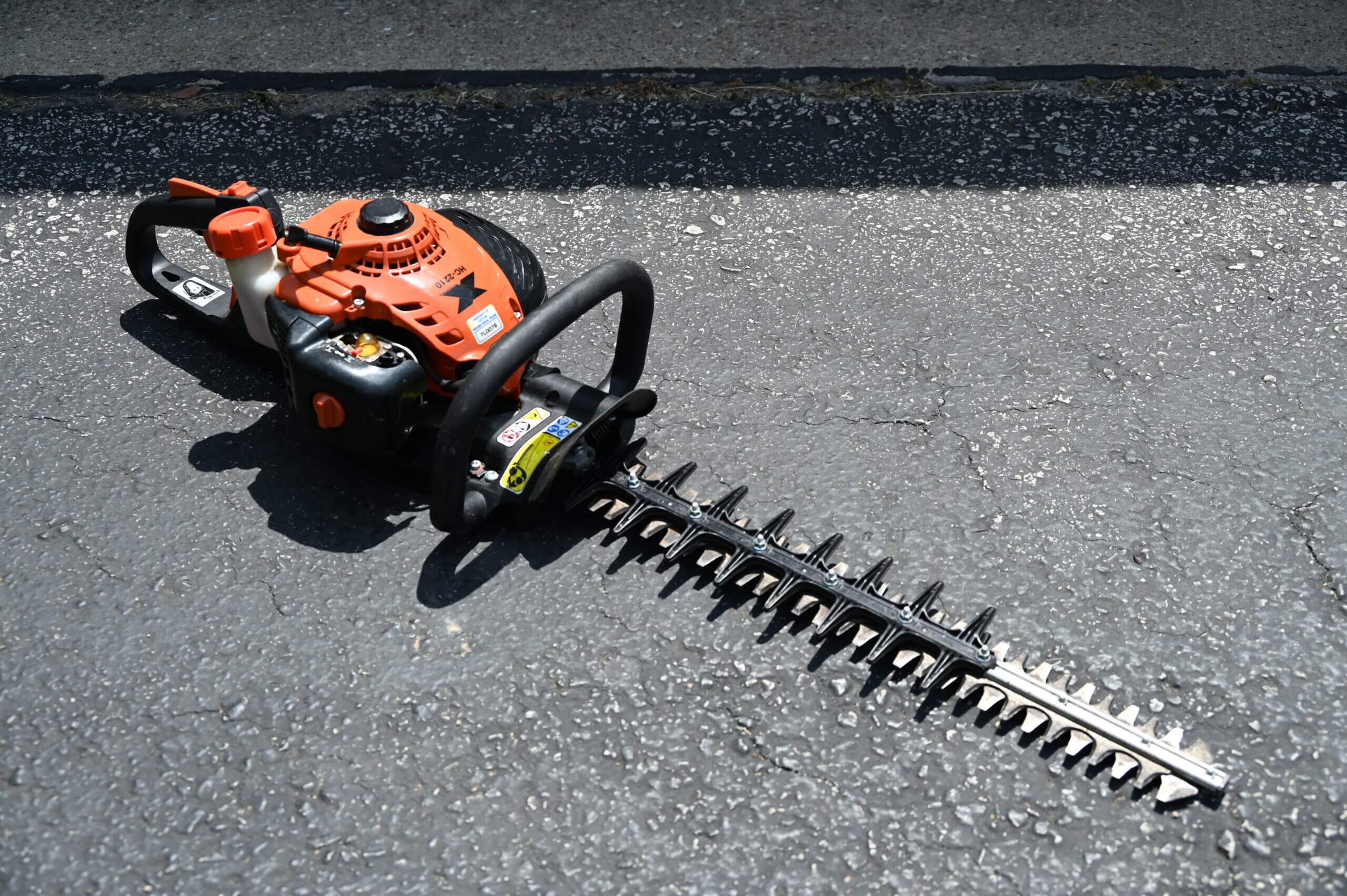
- Hedge trimmers
- Tiller
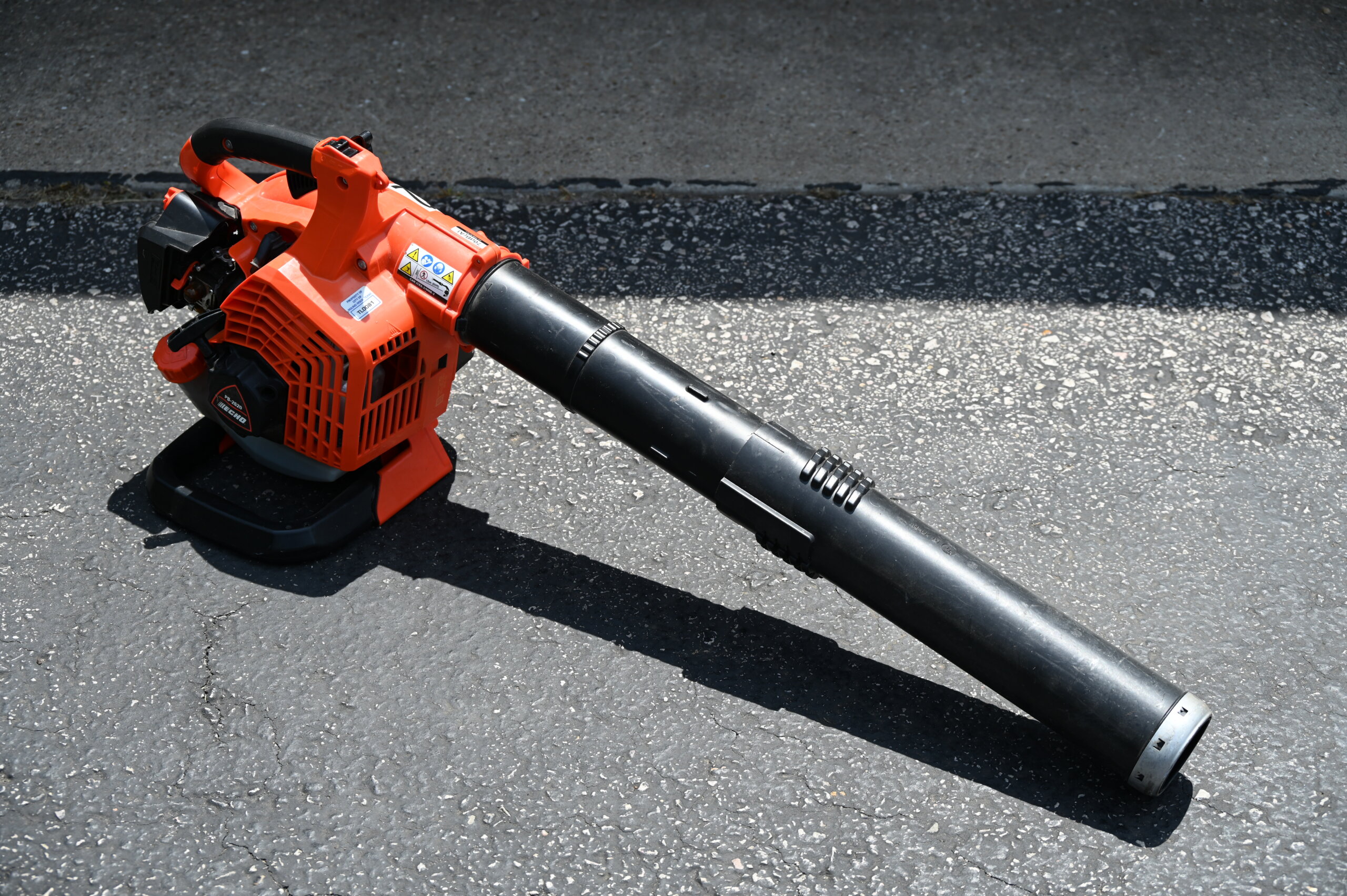
- Blowers
- Fence staining kits
Placing Holds
Once you have both a Tool Depot account and a valid MasterLock Vault Enterprise account, you may place holds on any tools in our catalog. Please keep in mind that we require 1 business day to fulfill your tool request. Business hours are 8 a.m.-5 p.m., Monday-Friday (excluding holidays).
Tool Depot Catalog
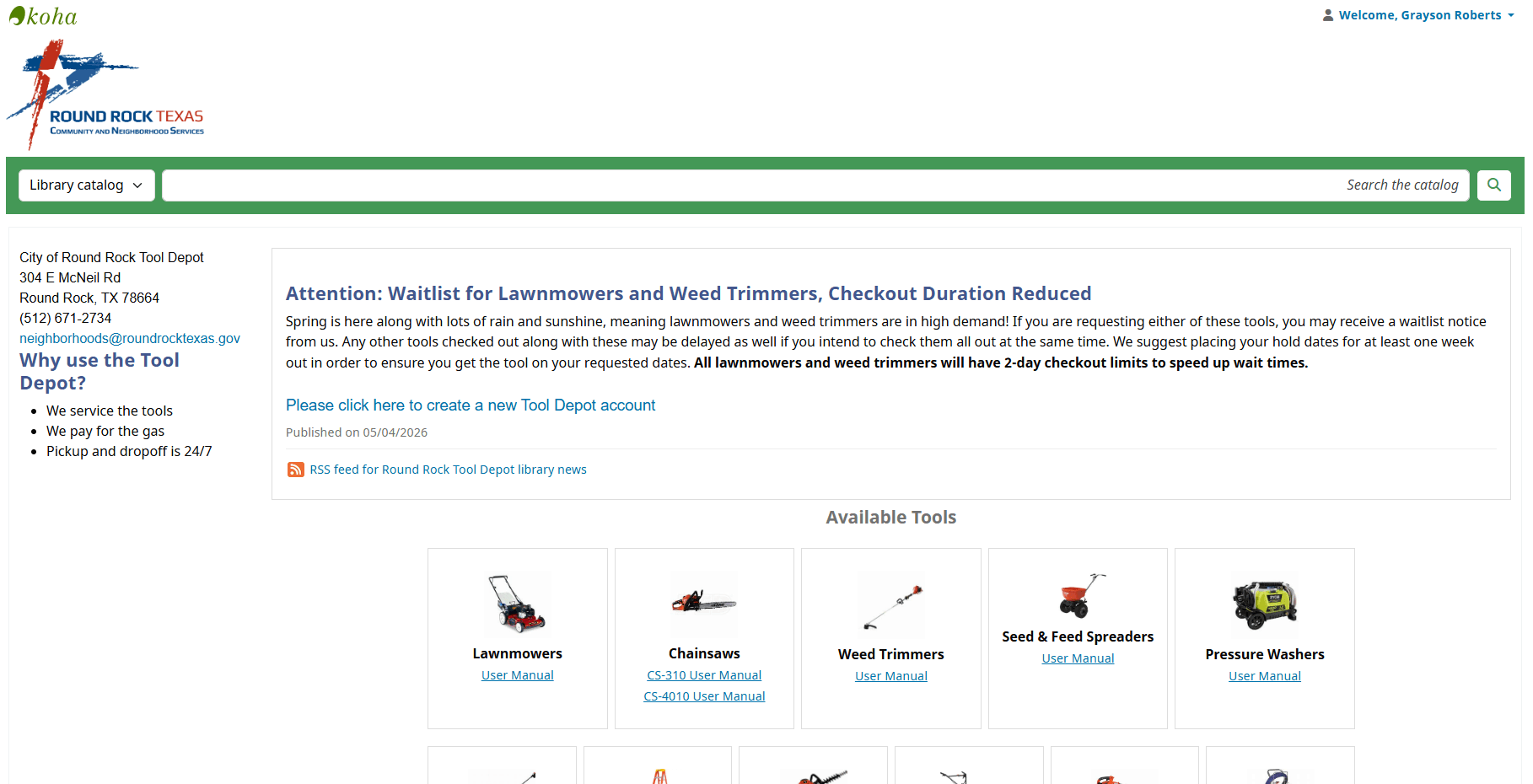
To place a hold, simply start by going to the Tool Depot Catalog and select from our list of available tools.
Navigating the Catalog
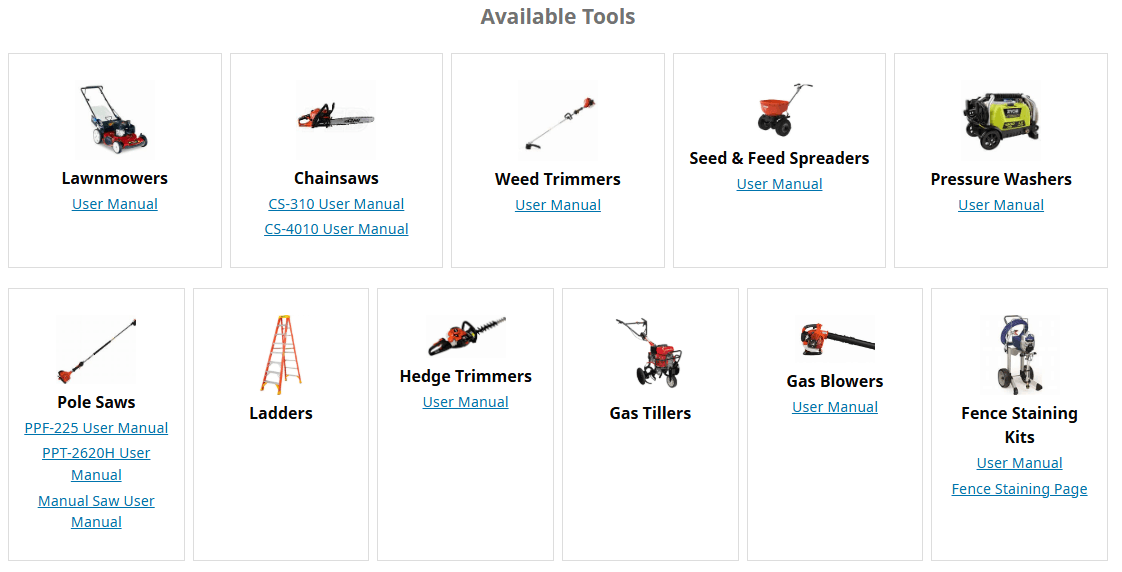
Available Tools
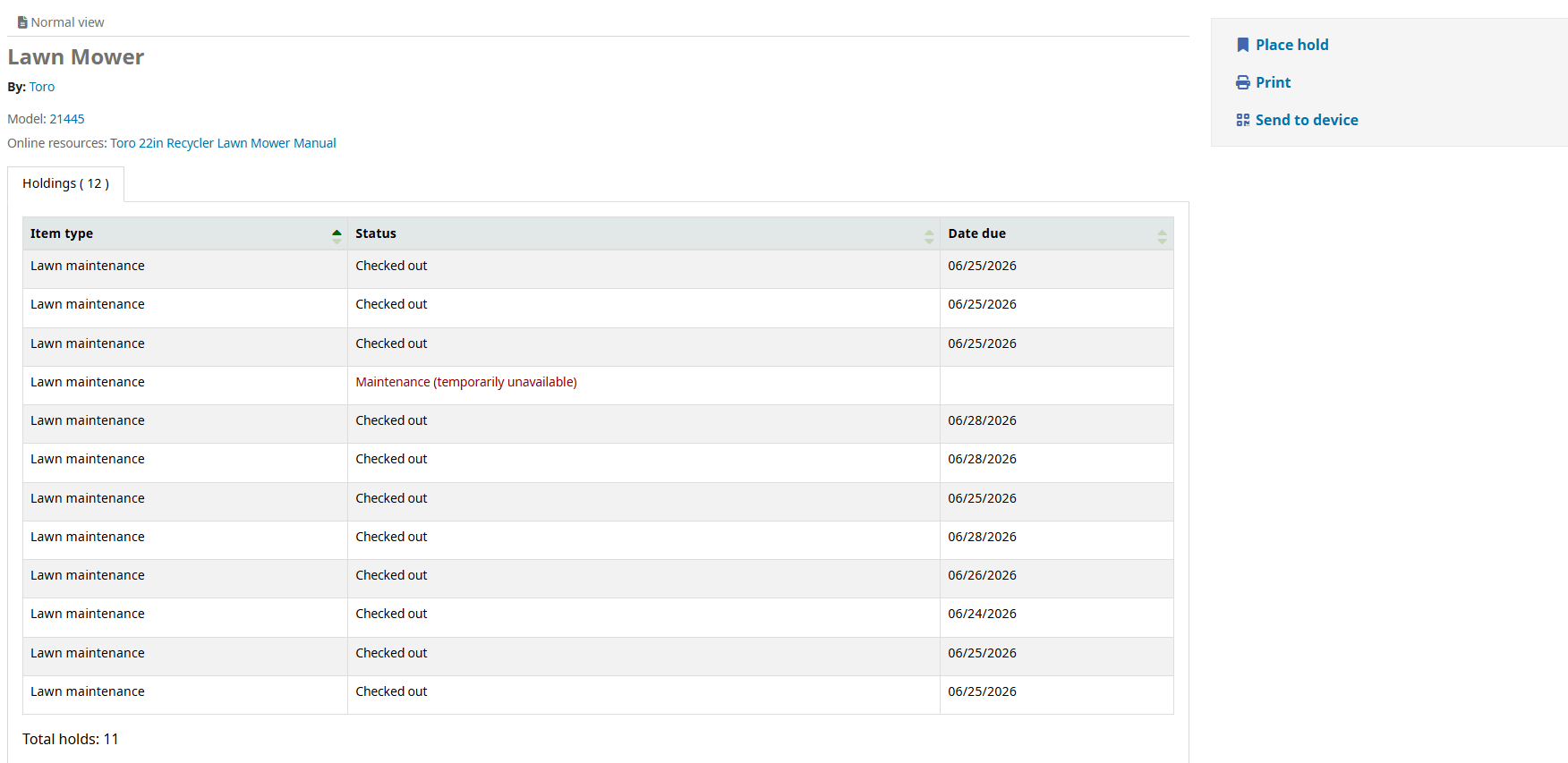
Here you’ll find all the types of tools we have in our inventory. Click on the picture of the tools you’d like to request.
Navigating the Catalog
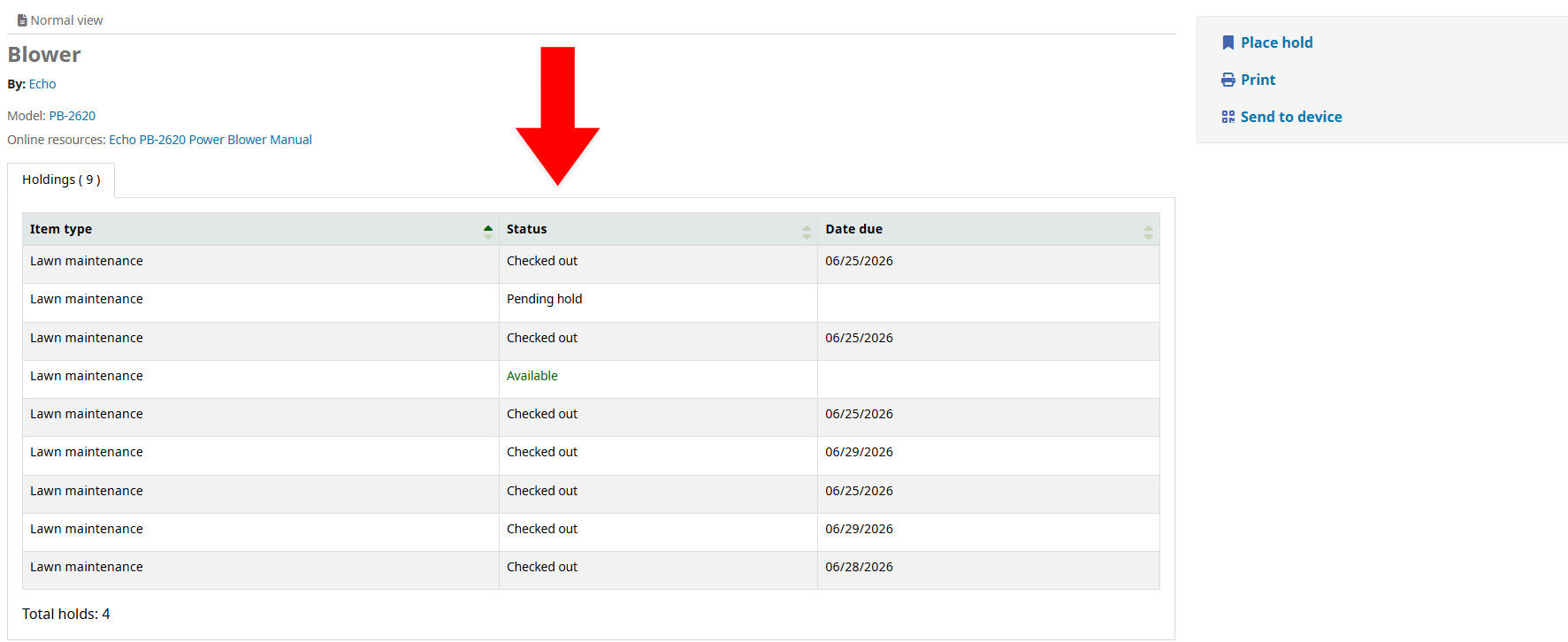
Tool Status
Here you’ll see how many of that specific tool we have in stock. You can see the status of each one and determine if there are any currently available.
Navigating the Catalog
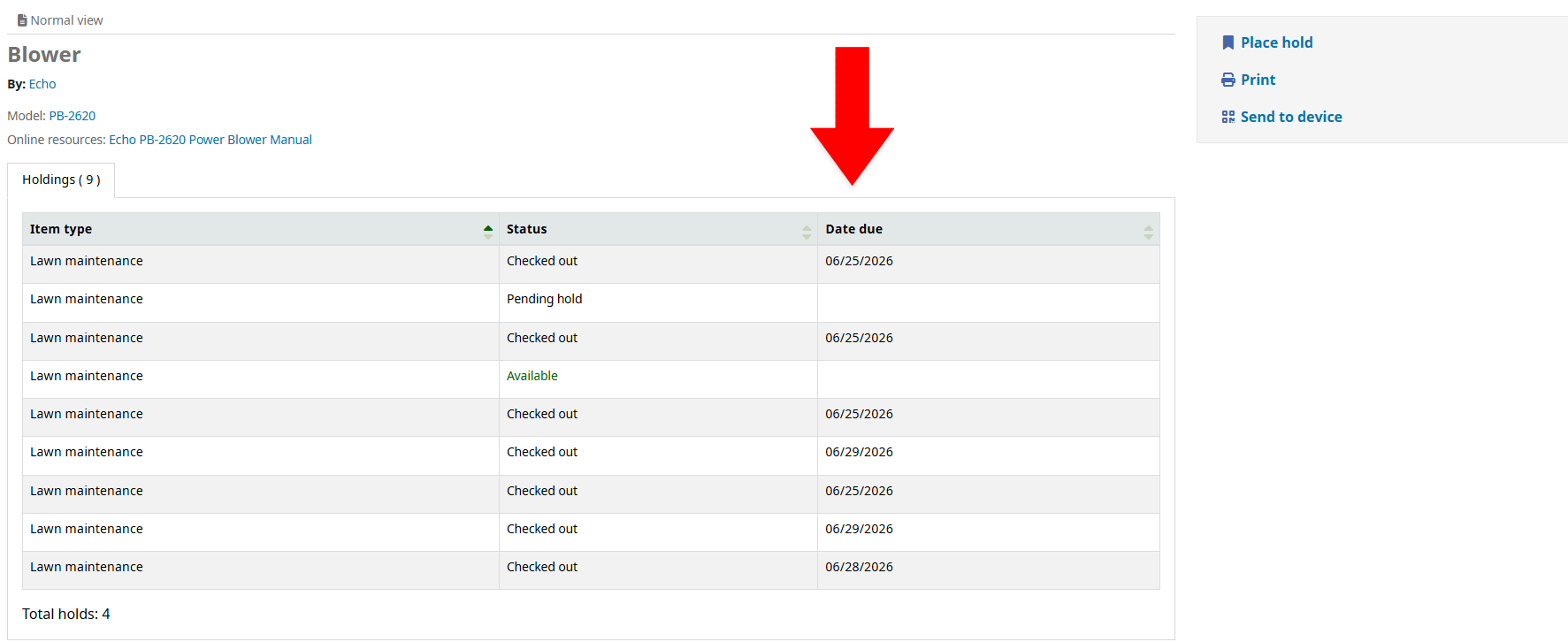
Due Date
The date due column indicates when the checked out tools are scheduled to be returned by the person that currently has it.
Navigating the Catalog
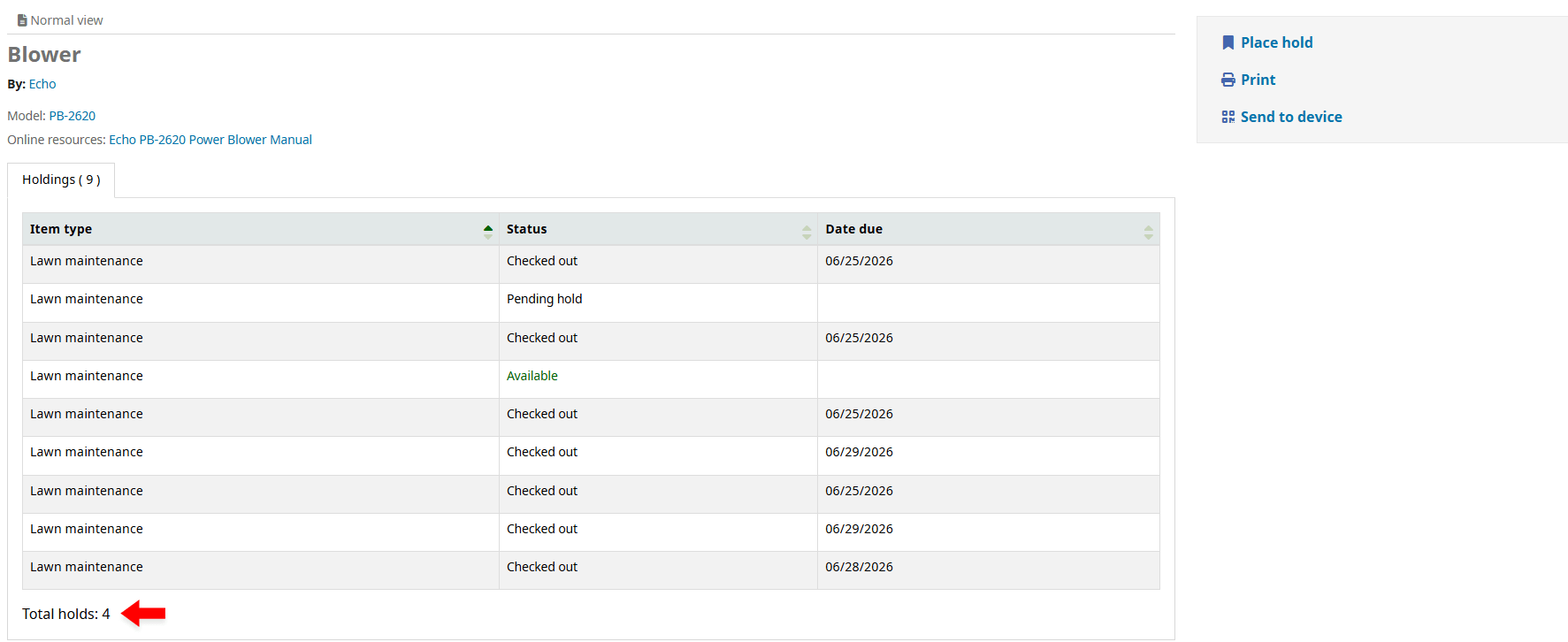
Total Holds
You can see how many other people currently have a hold placed on this type of tool. Think of this as the number of people waiting in line.
Navigating the Catalog
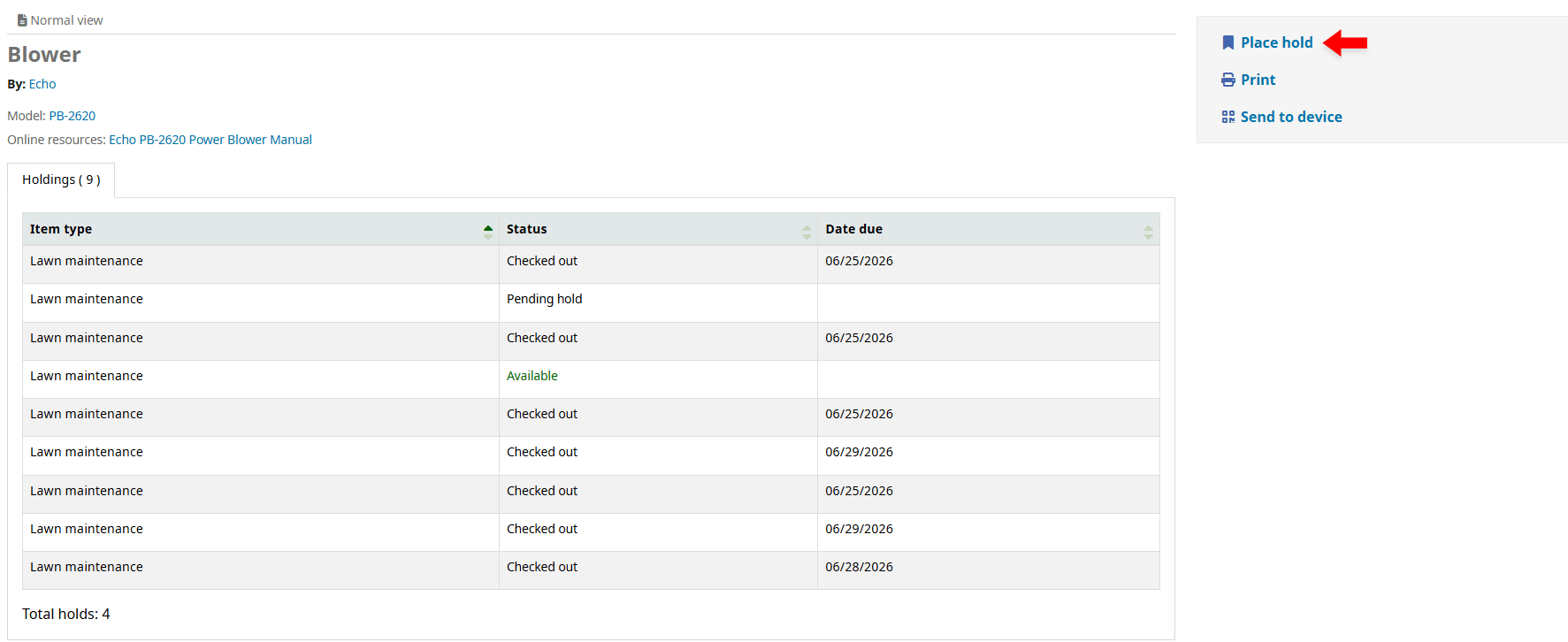
Place a Hold
If you want to request to borrow this type of tool, click on “Place hold” at the top right corner.
Navigating the Catalog
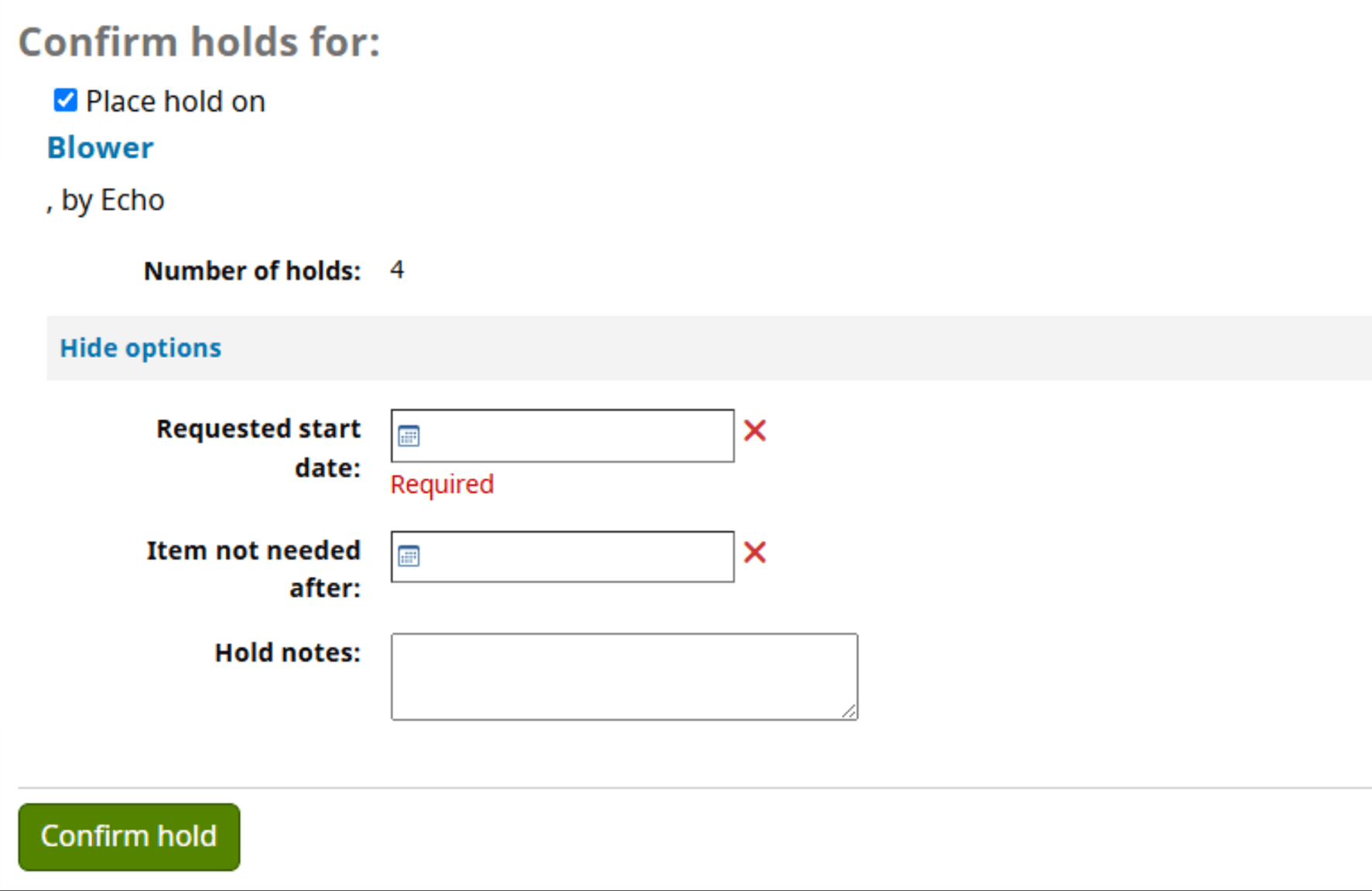
Confirming Hold
Here you will let us know what date you want your tool. Please keep in mind that we require 1 business day to assign a tool to you. Business hours are 8 a.m.-5 p.m., Monday-Friday (excluding holidays).
Navigating the Catalog
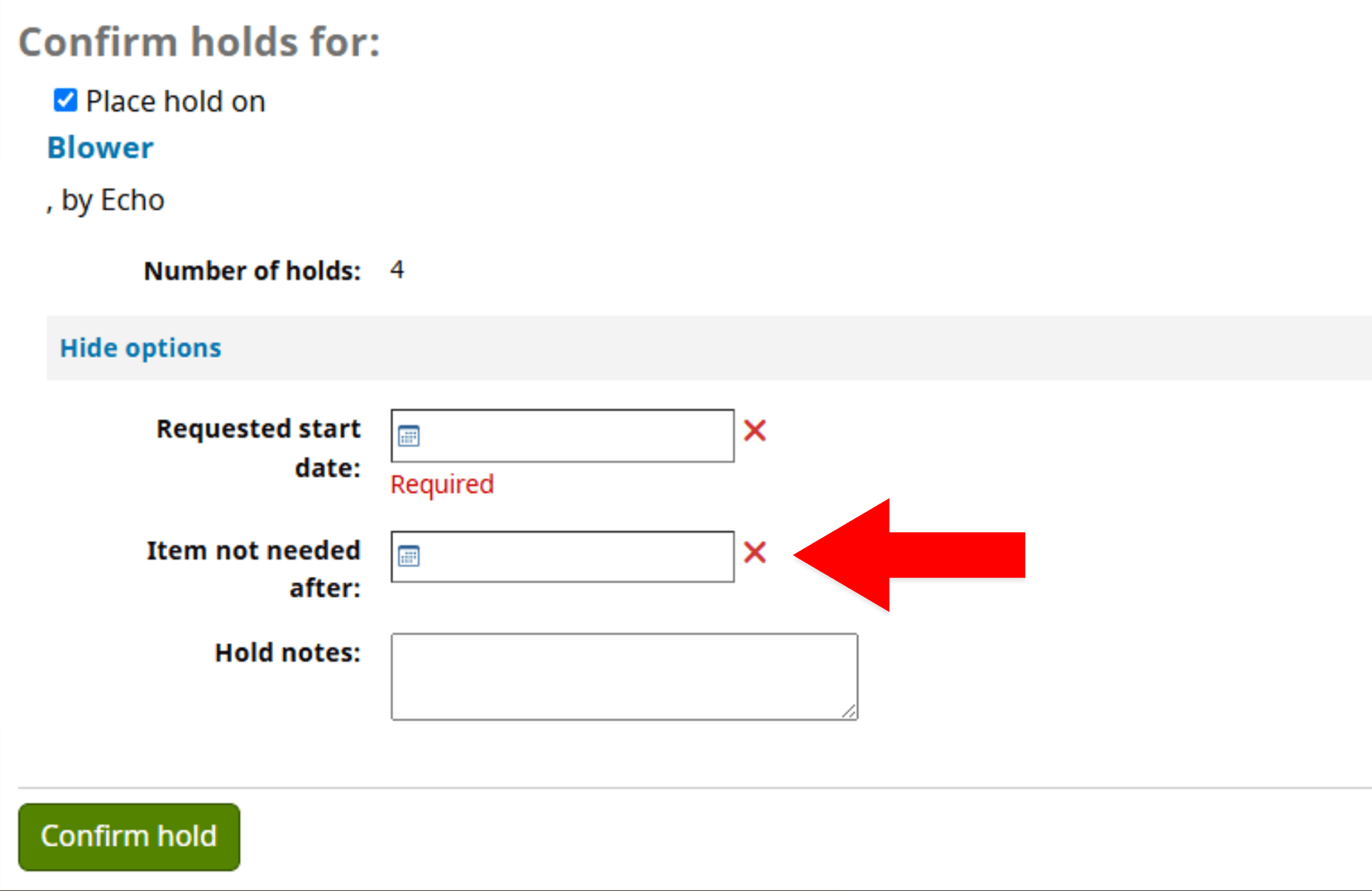
Expiration
You can enter an expiration for your request to automatically cancel. You may also leave this empty if you’d like to wait until the tool becomes available.
Navigating the Catalog
Waitlist
Tools like the lawnmowers and weed trimmers will often be in high demand during spring and summer. You may find them all checked out.
When this happens, we use a waitlist and restrict the checkout duration to ensure all users get an opportunity to use the tool(s). Plan out your tool request dates in advance (1-2 weeks out).
Picking Up Your Tools
After placing a hold on a tool, we will email you once it’s available for pickup. You may pick up the tool at any time so long as the tool is returned before midnight on the due date.
Location
- 304 E McNeil Rd, Round Rock, TX 78664
The Tool Depot is a self-service facility without on-site staff. You will need to use your MasterLock Vault Enterprise app to access the front door lock, and the locks for your requested tools. Please watch the instructional video for more details.
Assistance
If you do need staff help, you can reach us during business hours: 8 a.m.-5 p.m., Monday-Friday (excluding holidays).
Instructional Video
Please watch this brief video detailing how to access the Tool Depot and pickup/return your tools using the MasterLock Vault Enterprise app on your smartphone.
Returning Tools
When a tool is assigned to you, we will send an email that includes the due date for each tool. You may return your tool at any time before that due date. Simply bring the tool back to the Tool Depot and return it in the same location that you found it.
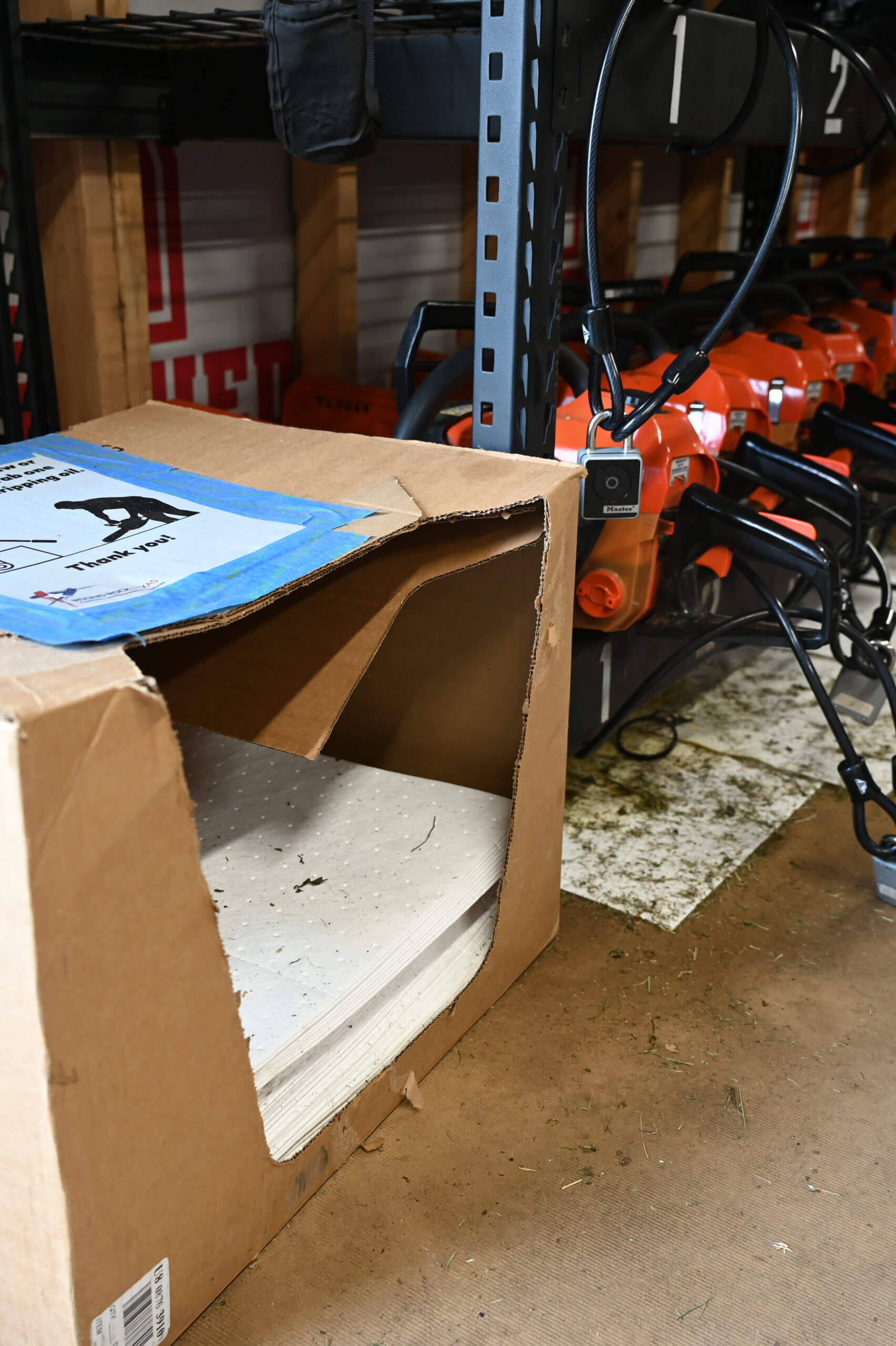
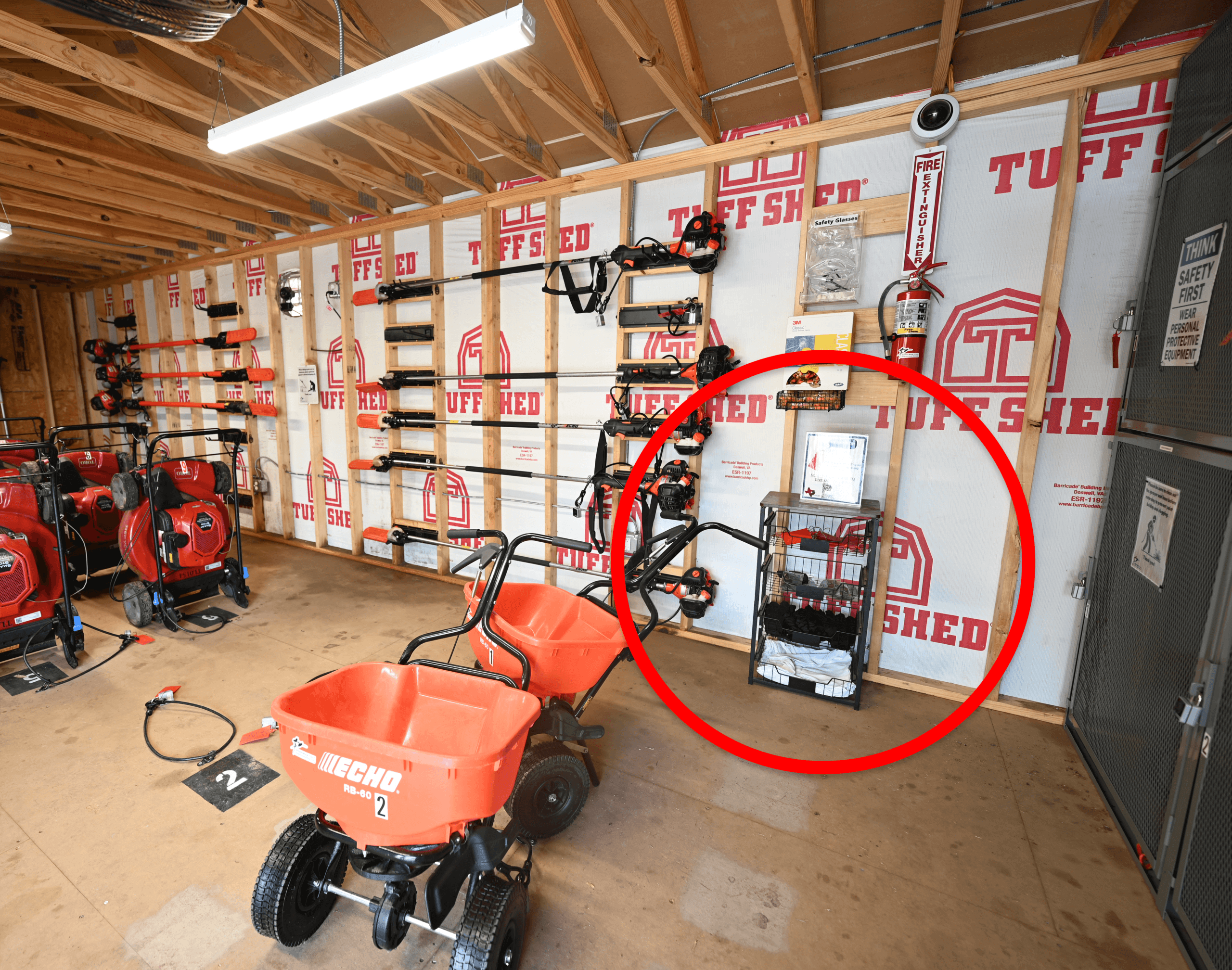
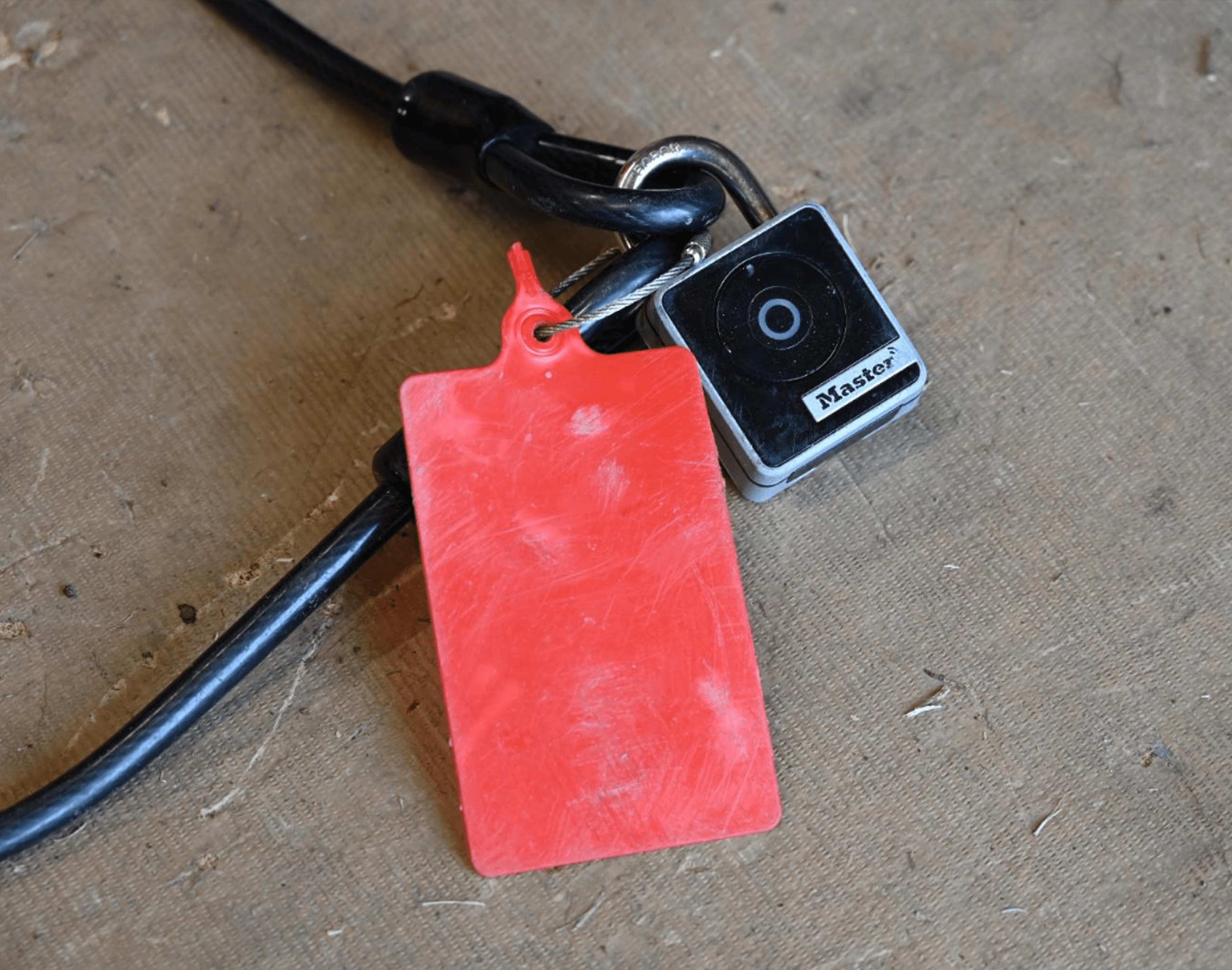
When locking it back up, please grab a red tag from the basket and loop it on the lock to let our team know the tool has been returned and needs to be serviced.
MasterLock App
Organization ID
The Organization ID is NeighborhoodServices. If you set up the app using the email that we send, it should be auto-filled. If you don’t have a MasterLock account, you can get one as part of step 3 in the “Creating an Account” section.
The Application
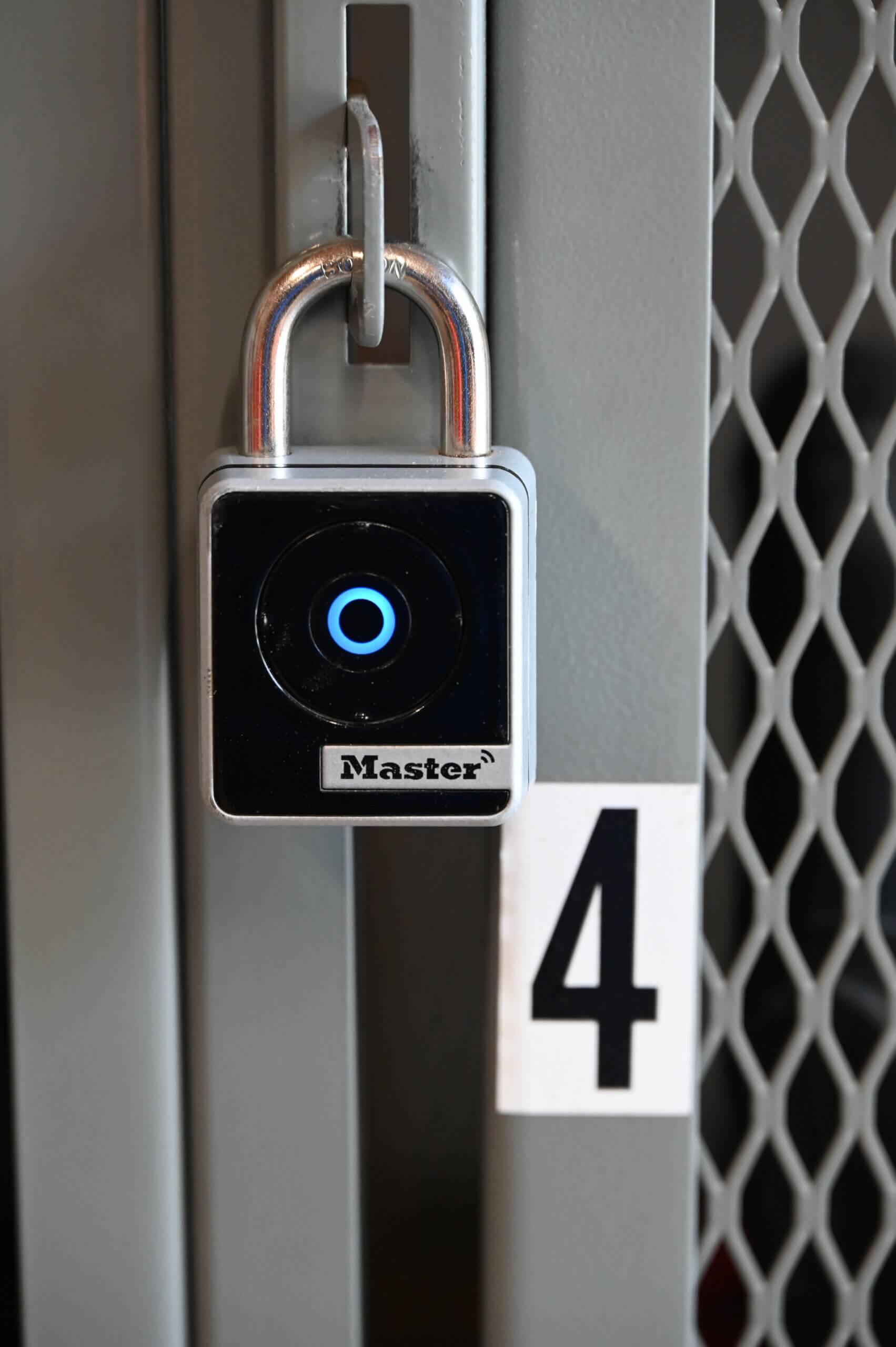
We use the MasterLock Vault Enterprise app as a means of giving users access to the tools they’ve placed holds on. This is a separate app that you must download and access on your smartphone. It uses your phone’s Bluetooth to unlock the locks on the front door as well as the locks on the tools you’ve been assigned. Click the corresponding button below to download the free app.
Troubleshooting
You can find manuals for our tools on the Tool Depot catalog. However, we have a few tips in this section for common issues:
Some of the tools like the chainsaws, pole saws, hedge trimmers, blowers, and weed trimmers have a trick to starting them. Before you engage that choke lever and begin pulling the starter rope, go through this checklist.
- Place tool firmly on the ground.
- Turn on ignition switch.
- Pull out the choke lever or move choke lever to “cold start”
- Pull the starter rope until you hear it “pop” or “burp” or otherwise attempt to start before immediately dying. This should occur after a few pulls. Do not continue pulling the rope. You will flood the engine.
Note: If the engine happens to start during this step, simply push the choke back in or move it to “run” and let the engine run for a few seconds. You’re good to go! - If the engine did not start during that step, push the choke back in or move the lever to “run.”
- Pull the start rope 1 to 3 more times and the engine should start and stay running. You’re good to go!

The Bluetooth locks that we use on the front door and all of the tools are unlocked using the MasterLock app. If you are having trouble opening them, please refer to the instructional video as well as the steps below.
- Open the MasterLock Vault Enterprise app on your smartphone. It must match the blue icon as shown in the “MasterLock” section.
- Login using the same email you used for your Tool Depot account. The Organization ID is NeighborhoodServices.
- Make sure you have locks assigned to your account. You will see them in the “authorized locks” tab.
- Make sure your Bluetooth is turned on and is set to “Allow new connections.”
- Click any of the buttons on the physical lock on the front door. It should light up blue indicating that it’s awake.
- Look at your phone at the list of authorized locks. The one labeled Tool Depot Front Door should have a blue icon pop up next to it.
- Tap this blue icon and you should hear the physical lock attempt to unlock.
Note: If it doesn’t make a noise, wait for the blue icon to reappear, and try again.
Note: If it makes a clicking noise but doesn’t unlock, make sure you aren’t putting any pressure on the physical lock. Any amount of force pulling it down will prevent the internal mechanism from unlocking.
The chainsaws feature a chain brake for safety that sits just in front of the forward handle. If the brake is engaged, it will stop the chain from freely moving and make cutting nearly impossible. Pull the chain brake back fully until you feel and hear a “click.” This means the brake is disengaged and you’re ready to cut.
FAQs
Late Returns and No Call/No Shows
Just give us a call at 512-671-2734 or email us at neighborhoods@roundrocktexas.gov if it’s after-hours. You may even leave a voicemail. We will reschedule a new due date for you.
You can cancel your tool request on your account through the Tool Depot catalog, or you may contact us to cancel the request. Please do so before your due date is over.
Yes. Any instances of a late return or no call/no show will count against your account and may result in a 6-month suspension of access to the Tool Depot after repeated violations. You may avoid this by calling or emailing us before your due date is over.
As long as you leave a voicemail or send us an email, we will not penalize your account. We will reach out to you on the next business day.
Requesting Tools
Yes. You can suggest tools that you would like to see added to the Tool Depot by going to your catalog account page and clicking “Purchase Suggestions.”
Only if you have received an email stating that your tools are ready for pickup. Typically, we require 1 business day to process your request. Sometimes we are able to accommodate if you give us a call and the tools are available.
Yes. By placing a hold you are reserving your spot on the waitlist. We suggest planning your dates using the displayed dates the tools are due back as well as the total number of holds for that type of tool. We will send you an email when the tools have been assigned to you.
The facility is open 24/7 for picking up and dropping off tools after they’ve been assigned to you. Our staff work Monday-Friday, 8 a.m.-5 p.m. (excluding holidays). We process holds first thing every morning. So, if you placed a hold Friday afternoon, we likely won’t see it until the next Monday morning. This is why we ask for 1 business day to process your hold.
Yes. You can call us at 512-671-2734 to ask about getting the tools you need same day. However, we cannot guarantee that the tools will be available, and we cannot guarantee that we will be free to assist you immediately.
Using the Tools
If your tool isn’t functioning, you can call us at 512-671-2734 for assistance or to get you a new tool. However, some tools like the chainsaws, pole saws, hedge trimmers, blowers and weed trimmers have a trick to starting them. See our “Troubleshooting” section for details.
If you engaged the choke lever and pulled the starter rope more than 6 times, it’s likely that you just flooded the engine. If so, you’ll need to wait for the gas in the spark plug to evaporate before attempting to start the engine again. While you wait, you can check out our “Troubleshooting” section for help.
You can call us at 512-671-2734 and we will arrange to provide you with more or have you swap out the tool. You can request additional gas with your tool request if you know the job will require it. Please do not refuel the tools with your own gas.
MasterLock Vault Enterprise Bluetooth Locks
The “Authorized Locks” tab on your app will only have locks when you place a hold on a tool and we assign that tool to you.
It is very often the case that following the steps in our “Troubleshooting section will fix the problem. Otherwise, you can call us for assistance at 512-671-2734.
Contact Us
Our hours are 8 a.m.-5 p.m., Monday-Friday (excluding holidays). Please give us 2 business days to respond to voicemails or emails.